


Compatible with macOS 26 Tahoe and Apple M1, M2, M3, M4, M5 chips
The NTFS for Mac disk - reading and writing tool launched by CrossDriver
Use the excellent NTFS for Mac software to freely read, add, delete, edit, rename, and write files on NTFS drives in macOS and Mac OS X, without formatting
 Download Now
 Please use the NTFS for Mac that is compatible with macOS 10.13 and later versions
 Rated by 387 users, 4.8
 2026-08-24 11:23:48
NTFS Read/Write Tool for Mac
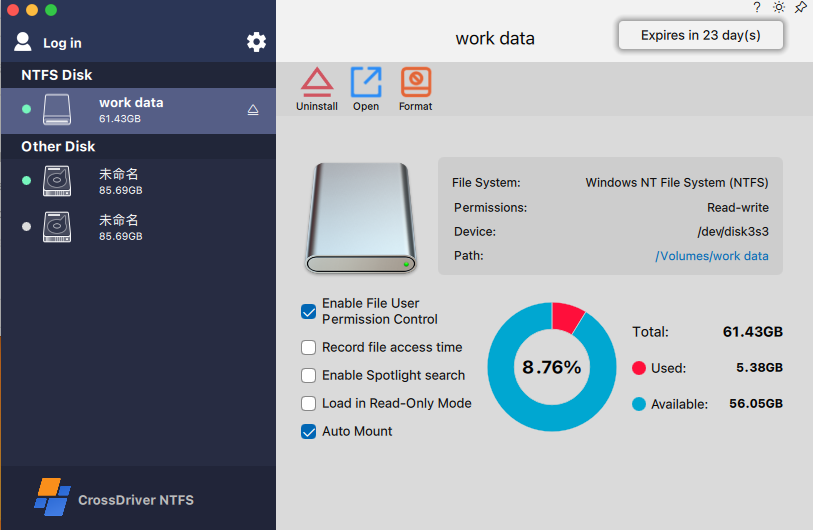
This is a lightweight utility designed specifically for macOS, breaking system limitations to provide full read and write control over Windows NTFS-formatted disks. Quickly mount or unmount disks via the menu bar, and freely edit, copy, or delete NTFS drive contents in Finder—fully compatible with Mac without the need for reformatting. It also integrates disk management features, supporting safe ejection, quick repair, and formatting operations, making it an efficient solution for cross-platform data exchange.
 Buy Now
 Automatically enable writing to NTFS drives after installation.


How to Install
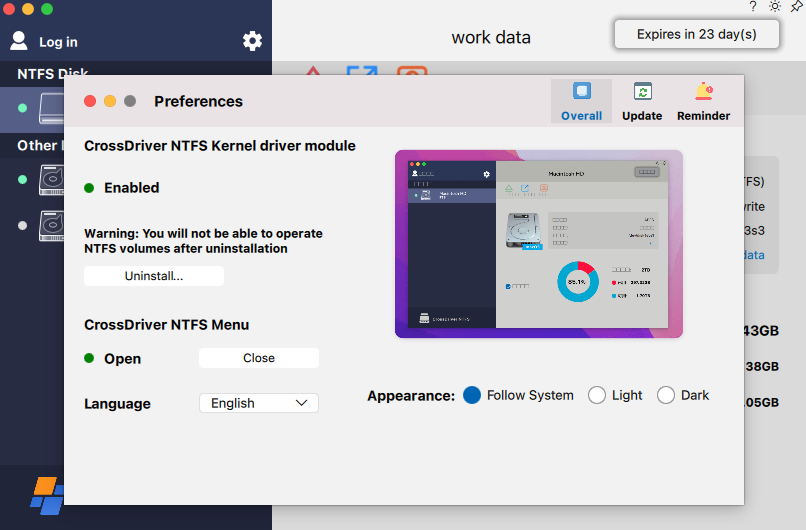
How to Uninstall
Just one click to install quickly
Automatically read and write to NTFS disks immediately after installation
-
1
Download
-
2
Install
Double-click the .pkg installer > Install, then follow the on-screen instructions to install this NTFS driver on your Mac.
-
3
Get Started
Directly edit files on the NTFS drive connected to your Mac or add files to the drive.
Uninstallation
Automatically read and write to NTFS disks immediately after installation
-
1
Download
Free download of NTFS for Mac.
-
2
Install
Double-click the .pkg installer > Install, then follow the on-screen instructions to install this NTFS driver on your Mac.
-
3
Get Started
Directly edit files on the NTFS drive connected to your Mac or add files to the drive.
Why Choose It?

Enable NTFS read-write access immediately
Second-level Mounting: Activate the driver with one click from the menu bar, and complete permission configuration in three steps.
Zero Reboot Interruption: Intelligently adapts to the system. Rarely requires a reboot during first installation—ready to use right after setup.
Enable seamless collaboration between Mac and Windows drives, and bid farewell to the "read-only" era once and for all!
Mount the Windows drive as a local drive
Managing mounted NTFS drives is no different from managing local drives. You can perform various file management operations on NTFS drives, such as tagging files, moving files with drag-and-drop, syncing files, and even using them as storage for Time Machine backups.


Compatible with external hard drives of various brands
Compatible with macOS and OS X


Fully compatible with Apple M1/M2/M3/M4/M5 chips
Supports formatting drives to NTFS on Mac


Enable read and write operations on BootCamp NTFS partitions on Mac
Compare and select
To help you better understand and select the right software, the following comparison table is provided. You can determine for yourself which software can provide your Mac with read and write access to NTFS drives in a safe, stable, and fast manner.
| CrossDriver NTFS for Mac |
Paragon NTFS for Mac |
Tuxera NTFS for Mac |
Hasleo NTFS for Mac |
NTFS-3G | FUSE for macOS |
SL-NTFS | |
|---|---|---|---|---|---|---|---|
| Fully read and write NTFS drives on Mac |
√ | √ | √ | √ | √ | √ | √ |
| Supports macOS 26 Tahoe | √ | √ | √ | √ | √ | √ | × |
| Supports macOS 15 Seguoia | √ | √ | √ | √ | √ | √ | × |
| Supports macOS 14 Sonoma | √ | √ | √ | √ | √ | √ | × |
| Compatible with Apple silicon-based Macs (M1/M2/M3/M4/M5 chips) |
√ | √ | √ | √ | √ | √ | × |
| Provides NTFS formatting options | √ | √ | √ | √ | × | × | × |
| Rapid data transfer speed | √ | √ | × | √ | × | × | × |
| Auto-mount | √ | √ | √ | √ | × | √ | × |
| Easy to install | √ | √ | × | × | × | × | × |
| Easy to uninstall | √ | √ | √ | × | × | × | × |
| File user permission control | √ | × | × | × | × | × | × |
| VM file support | √ | √ | × | × | × | × | × |
| LZNT1, XPRESS, LZX Compression format support |
√ | 〇 | × | × | × | × | × |
| Suitable for | General Users, High Reliability |
General Users, High Reliability |
Professional Use, Advanced Requirements |
General Users, High Reliability |
Expert User, Cost-Conscious |
Occasional Use Simpler, Free to use |
Basic Needs |

Safe and Fast NTFS Driver Solution
It’s not just a safe and efficient Microsoft NTFS driver, but also a disk manager.
Don’t hesitate. Try the best NTFS driver for Mac Sequoia — it will never let you down.
Outstanding features
| Features | Advantages |
|---|---|
| Supported Mac Devices |
|
| Supported Storage Media |
|
| Supported Operating Systems |
|
| Technical Specifications | Compatible with 64-bit kernel mode macOS 10.13 or later and Apple Silicon Macs. System extensions must be enabled when installing CrossDriverNTFSForMac. User Guide: How to enable system extensions on Apple Silicon Mac |
| Supported File Systems | Supports all Microsoft NTFS versions (from Windows NT 3.1 to Windows 11) |
| Performance | Provides a native APFS and HFS+ experience |
| Auto-mount | CrossDriver NTFSforMac driver can open, eject, mount, unmount, and format Windows drives. In addition, it can verify, open, and format non-NTFS volumes. |
| Disk Management | The CrossDriver NTFSforMac mounter automatically mounts Windows NTFS-formatted drives in read-write mode at startup. |
| Apple BootCamp Compatibility | CrossDriver NTFSforMac provides direct read and write access to BOOTCAMP partitions. Tip: You need to select the BootCamp partition in this tool and click "Start" to set Windows to appear in the startup disk. |
| Third-Party Software Compatibility | This software is fully compatible with most third-party encryption applications, antivirus programs, virtualization software, Mac performance optimization tools, and more. |
User Reviews


FAQ
Resources
Tips and troubleshooting guide
![[Top 4 Methods] How to Use NTFS Devices on Mac?](/uploads/20250611/6cb7765c590f5bd7fd8ac9d95be291d6.png)
[Top 4 Methods] How to Use NTFS Devices on Mac?
This article introduces four comprehensive and proven methods to use NTFS drives on a Mac, helping you use them stably on your Mac.
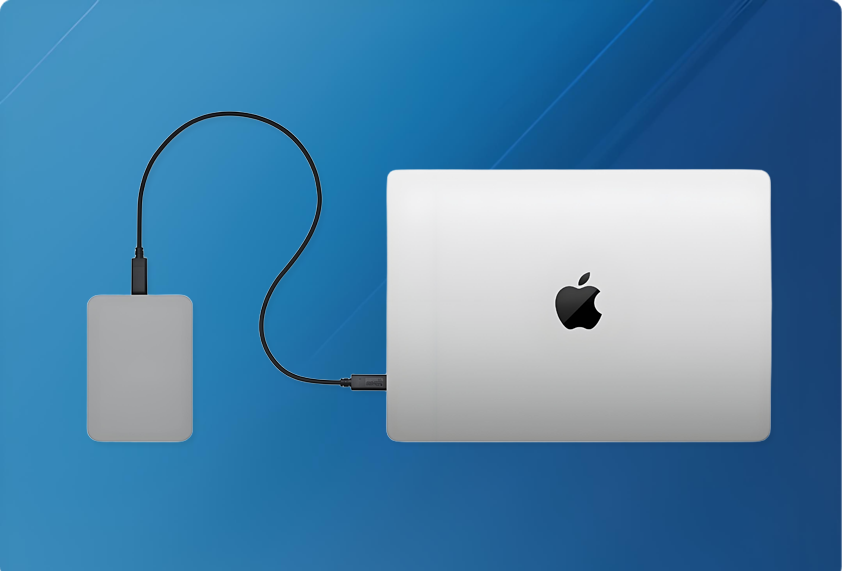
How to safely/force eject an external hard drive on Mac?
Find the external hard drive icon: Locate the external hard drive icon on your Mac desktop or in the Finder window.Eject the drive: Place your mouse pointer over the drive icon.
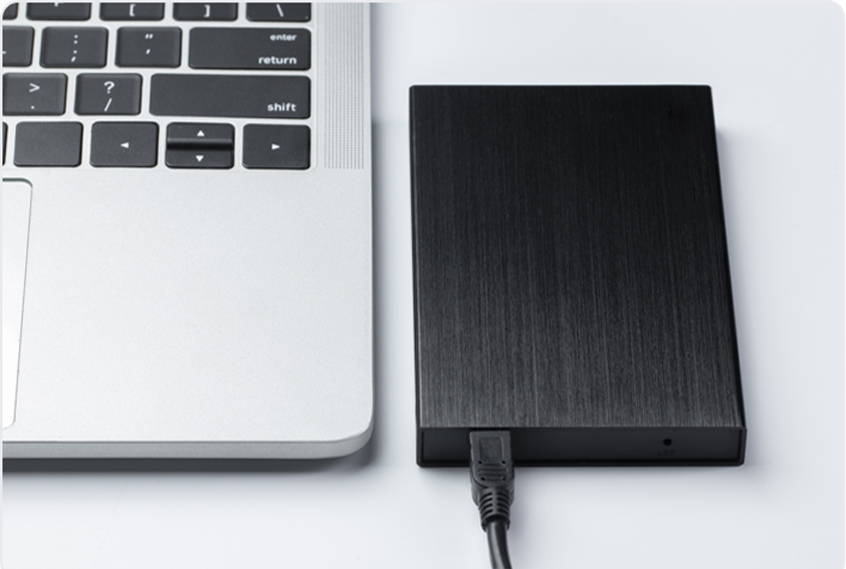
How to fix the external hard drive read-only issue on Mac?
It may be caused by disk errors that have damaged the file system. In this case, you need to run Disk Utility to repair it. Open Disk Utility and select the external hard drive.