Can a Mac read NTFS? Does macOS support NTFS?
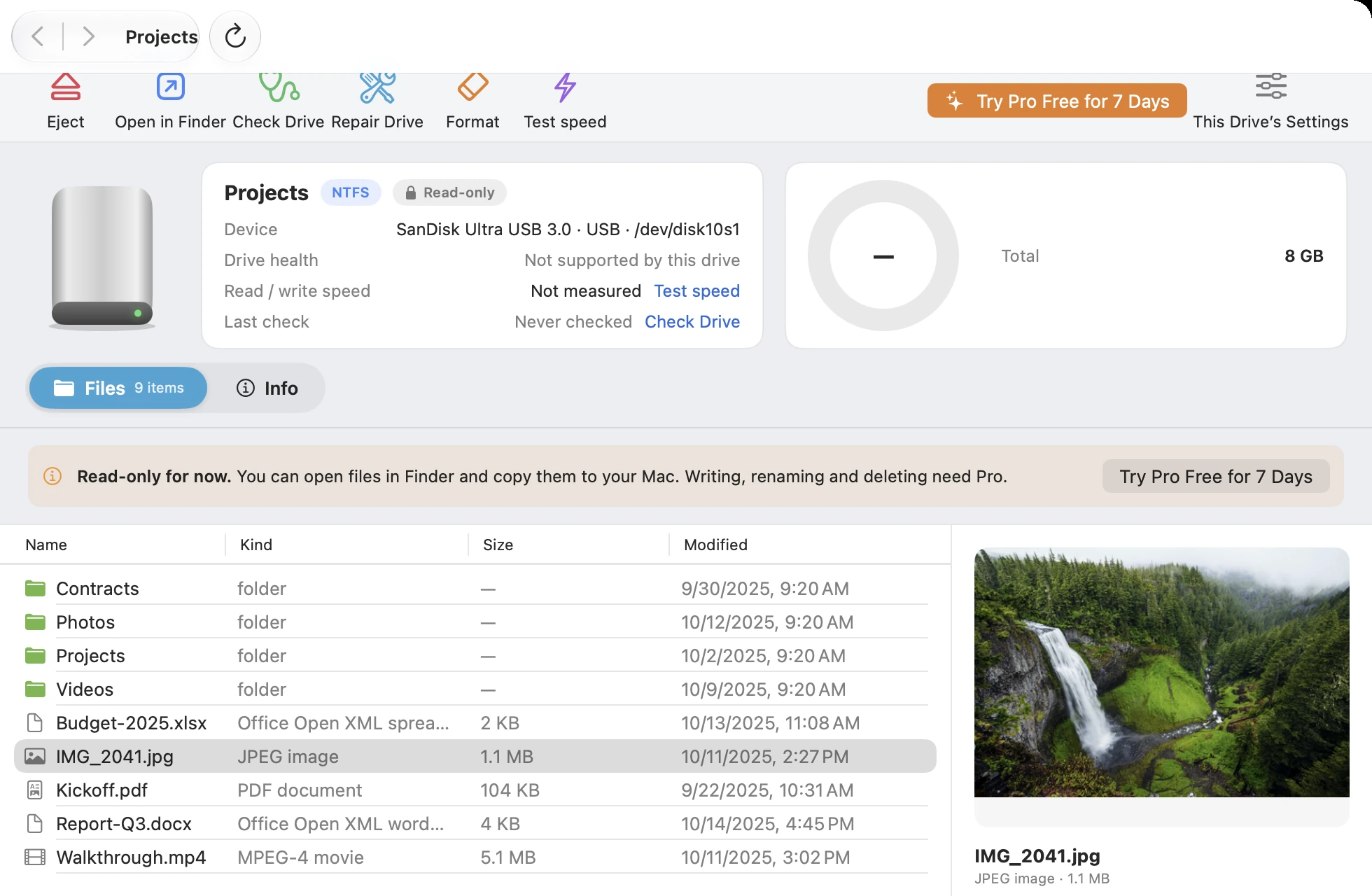
It can read but not write. The NTFS support built into macOS, including Tahoe 26 and Sequoia 15, is read-only: you can open files and copy them to the Mac, but you can't write, delete, or rename. To write to NTFS on a Mac you need an NTFS tool such as CrossDriver NTFS (free read-only; Pro writes, with a free 7-day trial), or back up the disk and format it as exFAT.
Why can't my Mac copy files to an NTFS external drive?
macOS only has built-in support for reading NTFS, not writing, so Windows-formatted external drives and USB flash drives are read-only on a Mac: you can open files, but you can't drag files in, delete or rename. Select the disk in Finder and press ⌘I — if Format shows "Windows NT File System (NTFS)", that's why. The free version of CrossDriver NTFS is read-only too; Pro makes the disk read-write in Finder, and you can try it free for 7 days. For other fixes, see Mac can't write to an NTFS external drive? Here's what to do.
How can I read and write NTFS on Mac for free?
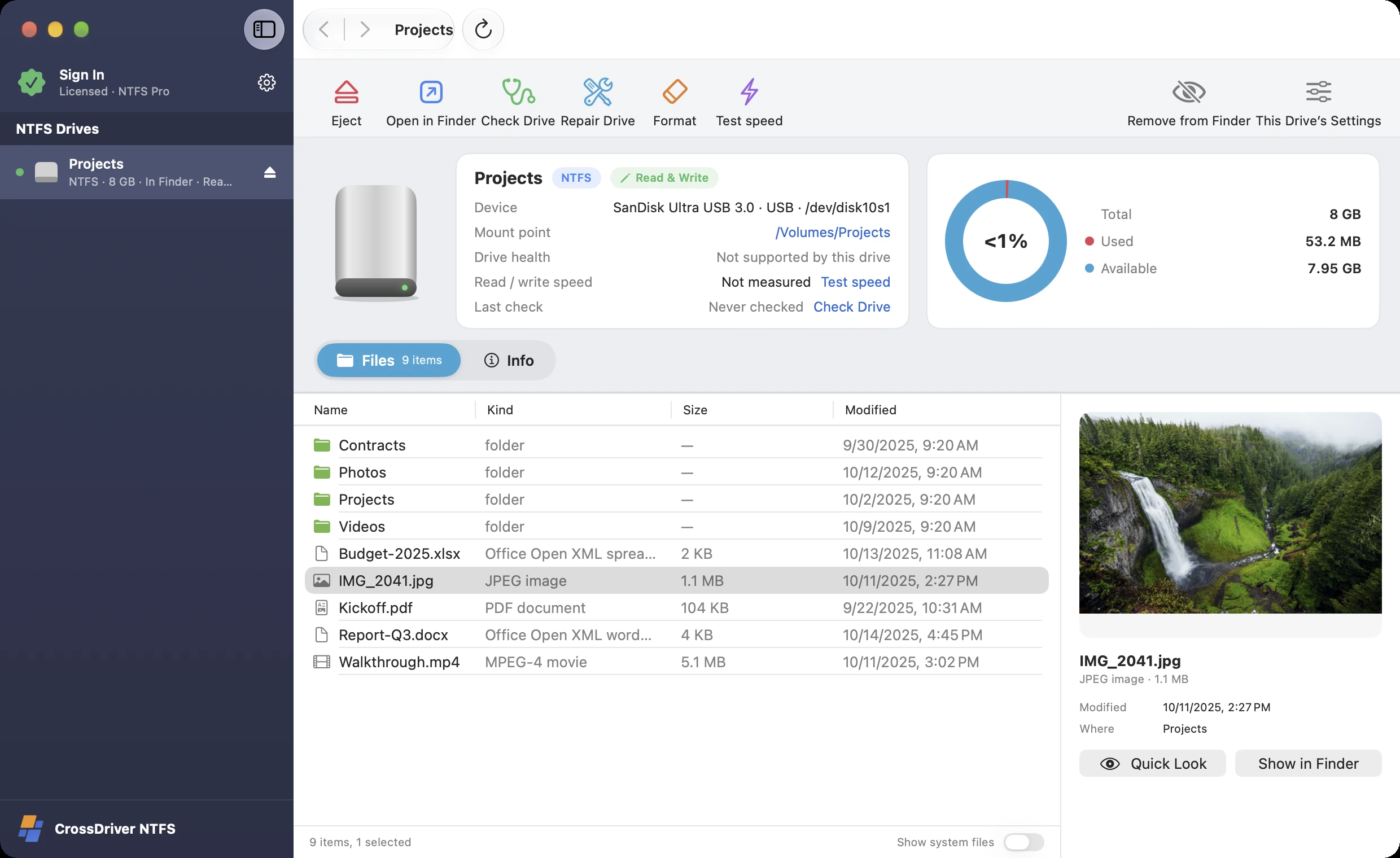
The free version of CrossDriver NTFS opens NTFS disks read-only in Finder so you can browse, preview and copy files to your Mac, with no time limit. When you need to write, try Pro free for 7 days in the app — no payment details required. If you only occasionally move files between Mac and Windows, you can also format the disk as exFAT (this erases the data). For the differences, see exFAT vs. NTFS: which should you choose?
Getting "You can only read", or files won't drag in and appear grayed out?
First select the disk in Finder and press ⌘I. If Format shows "Windows NT File System (NTFS)", it's because macOS can't write to NTFS — install CrossDriver NTFS to write. If it's APFS or Mac OS Extended, check "Ignore ownership on this volume" at the bottom of the Info window. For SD cards, also check the write-protect switch on the side. For a step-by-step checklist, see Mac external drive is read-only? Here's what to do.
Copying files from a MacBook to a USB flash drive fails or says the file is too large?
Copying fails when a single file is larger than 4 GB and the flash drive is formatted FAT32 — back it up and reformat it as exFAT or NTFS. For other common causes and fixes, see MacBook can't copy files to a USB flash drive or external drive.
Does it work with USB flash drives, SD cards and SSDs?
Yes. NTFS-formatted external hard drives, SSDs, USB flash drives, SD cards and drive docks all work, over USB or Thunderbolt. Drives formatted as FAT32 or exFAT can already be read and written by your Mac, so you don't need CrossDriver for them.
How is it different from Paragon NTFS, Tuxera NTFS, Chiyou NTFS, iBoysoft NTFS and Mounty?
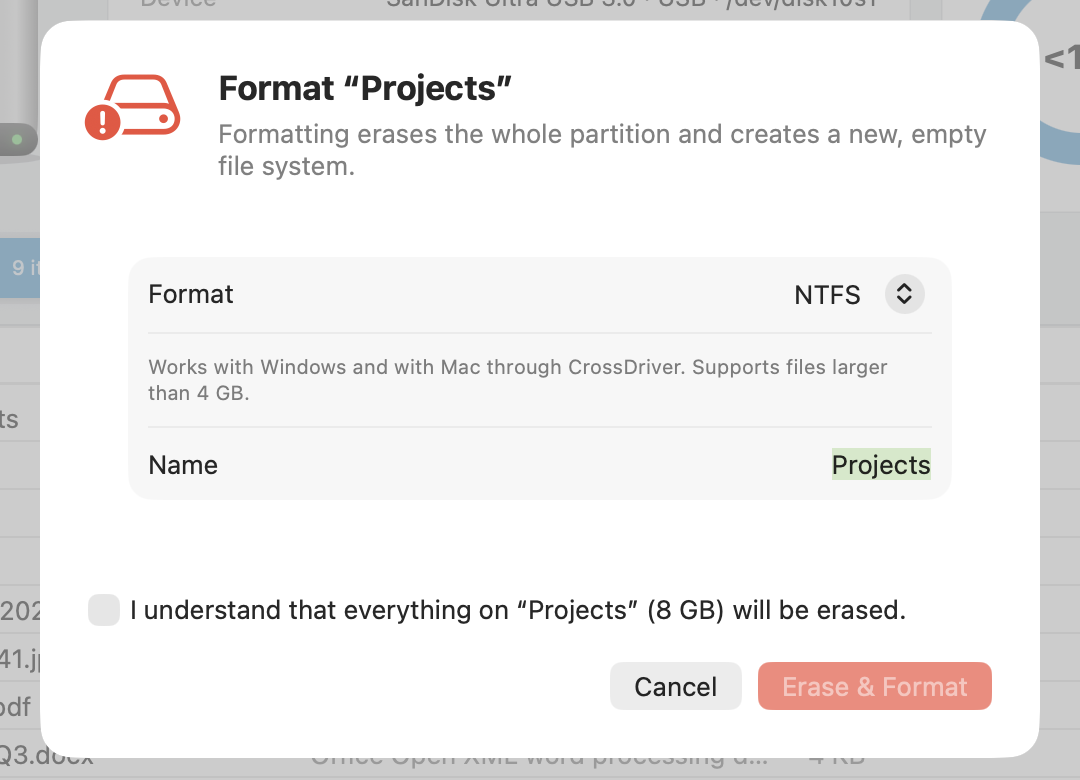
These are all common NTFS for Mac solutions, each with its own trade-offs; check their official websites for current features and pricing. What sets CrossDriver NTFS apart: it reads and writes using the native Linux NTFS driver inside an isolated engine, with no kernel extension and no lowered security; the free version already gives read-only access in Finder, and Pro comes with a free 7-day trial; disk repair, NTFS formatting and BitLocker unlocking are all built in. If you're looking for an alternative, install the free version and compare for yourself.
Can I turn on macOS's built-in NTFS write support with a Terminal command?
The /etc/fstab trick that circulates online relies on an undocumented, unsupported experimental feature from Apple. It usually no longer works on recent macOS versions and may corrupt data when writing, so we don't recommend trying it on important disks.
I installed an NTFS tool. Why is the drive still read-only?
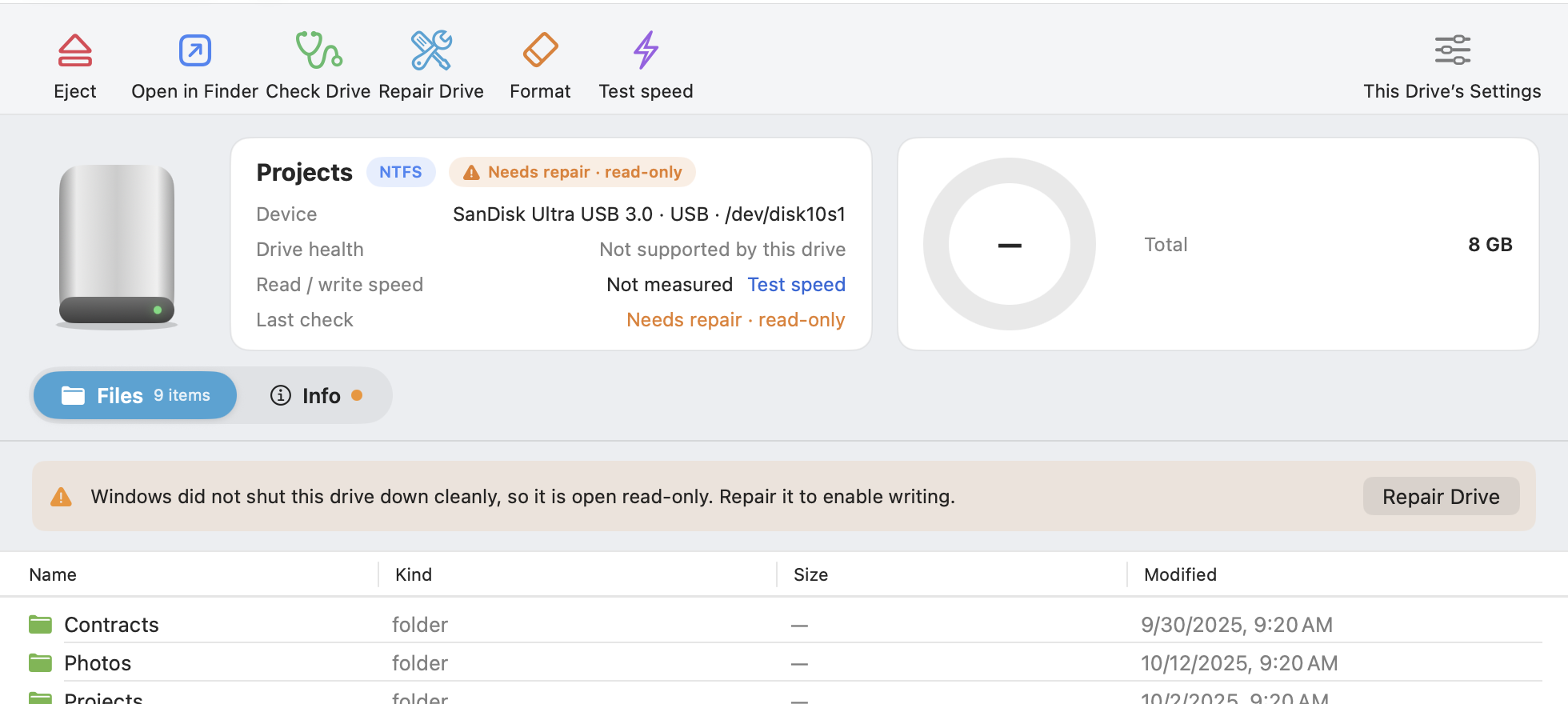
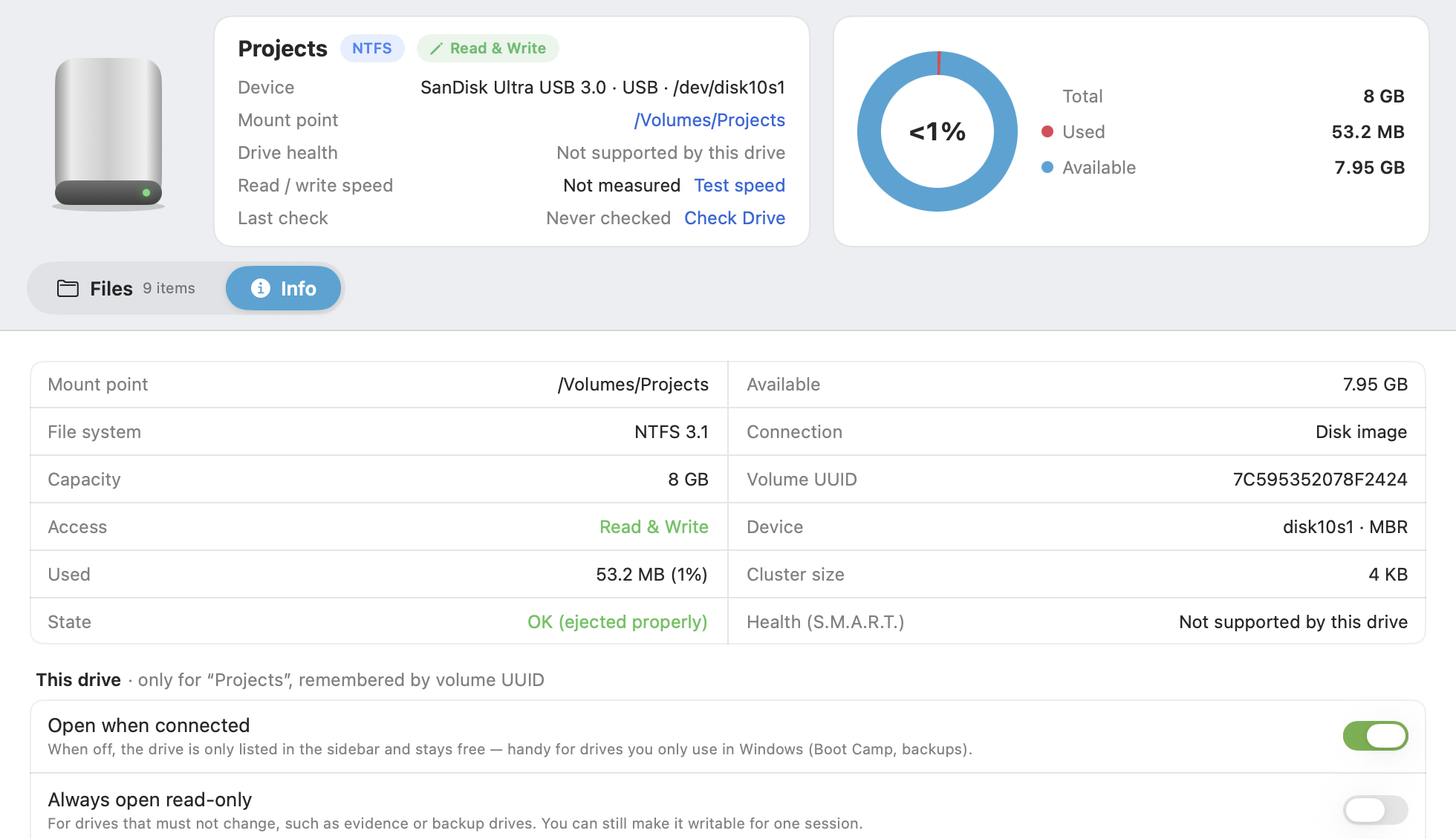
Common reasons: Windows Fast Startup or hibernation left the NTFS volume not fully closed, so the tool opens it read-only to protect your data; the disk isn't actually NTFS (press ⌘I and check Format); you're on the free version or the trial ended; several NTFS drivers are installed and conflict; or a BitLocker disk hasn't been unlocked yet. CrossDriver NTFS shows the disk's status in the app, and a volume that wasn't closed properly can be repaired there (Pro) and then written to.
Why does my disk say it "needs repair"?
Usually because Windows has "Fast Startup" enabled, or the drive was unplugged without ejecting. CrossDriver first opens it read-only to protect your data; click "Repair Disk" and you can write to it.
Can I use the free NTFS for Mac driver that came with my Seagate drive?
Some drive makers, Seagate for example, offer a free NTFS for Mac driver for their own drives. It usually works only with that brand's drives, and it's typically a kernel-extension driver, which on Apple silicon Macs may require lowering security in Recovery mode. CrossDriver NTFS works with drives of any brand and needs no kernel extension.
Can it open BitLocker-encrypted disks?
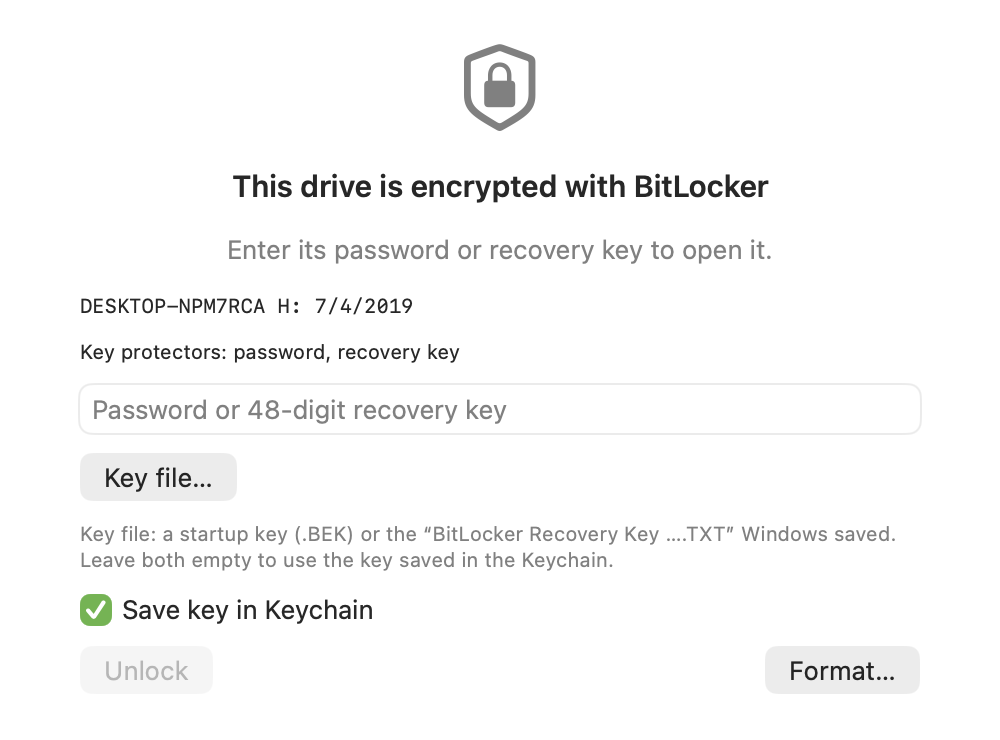
Yes. Unlock with your password or 48-digit recovery key. The free version is read-only; Pro can read and write. BitLocker support is included — no extra plug-in to buy.
Windows had "Fast Startup" or hibernation on, and now the disk is read-only?
After Fast Startup or hibernation, Windows leaves the disk in a "not fully shut down" state, and writing to it directly could lose data. CrossDriver opens it read-only first to protect your data. Go back to Windows, hold Shift while clicking "Shut down" (or turn off Fast Startup), then reconnect it to your Mac to write. If Windows simply didn't shut down properly, you can also use "Repair Disk".
Will it still work after a macOS update?
CrossDriver doesn't rely on kernel extensions — it uses macOS's built-in virtualization framework, so macOS updates usually don't affect it.
Does it work on M1–M6 Macs? Do I need to disable SIP or install a kernel extension?
Yes, it works — and no, you don't. CrossDriver runs natively on Apple silicon Macs such as M1–M6 as well as Intel Macs, on macOS 12 Monterey, 13 Ventura, 14 Sonoma, 15 Sequoia, 26 Tahoe and later. It uses macOS's built-in virtualization framework to run an isolated, lightweight engine that reads and writes your disks — no kernel extension, no disabling SIP, no changes to any security settings, and no restart after installing.
Can I try Pro first?
Yes. CrossDriver NTFS, Ext4, XFS and All in One all offer a free 7-day Pro trial in the app — once per Mac, no payment details required. After the trial ends, your disks remain accessible read-only and your files are unaffected.
How is it different from the Classic edition on crossdriver.com?
Classic is CrossDriver's kernel edition: it runs as a kernel extension and is the fastest, but requires lowering system security on Apple silicon Macs. The new generation doesn't rely on kernel extensions, runs at near-kernel speed, gives read-only access in Finder even in the free version, and has repair, formatting and encrypted-disk unlocking built in — at two-thirds the price of Classic. Both generations remain available; if you've already bought Classic, please refer to the Classic product page.
What should I do before unplugging?
Click "Eject" in the sidebar or on the disk page. CrossDriver writes your changes back to the disk first, then lets you know it's safe to unplug.
If I buy All in One, do I still need to buy NTFS, Ext4 or XFS separately?
No. An All in One Pro license also covers CrossDriver NTFS, Ext4 and XFS.
Does it work with Seagate, WD (Western Digital), Toshiba, Samsung T7, SanDisk and other brands?
Yes. Whether a disk opens depends only on its format, not on brand, capacity or connection: external hard drives, portable SSDs, USB flash drives, SD cards, and SATA / NVMe drives in an enclosure all work, over USB or Thunderbolt.