CrossDriver Data RecoveryFree scan and preview · Recover 500 MB free

Deleted or formatted a USB stick or SD card?
Get your files back on a Mac

CrossDriver Data Recovery is a Mac app. Plug in a USB stick, SD card, or external drive and choose how to recover: deleted files come back with their original names and folders; formatted disks, or disks that ask to be formatted, get a block-by-block deep scan that finds photos, videos, documents, and more by type; if the partition table is damaged, it finds the original partitions and opens them directly; if the volume still opens, it opens it read-only so you can copy your files out. Strictly read-only. Preview for free, and recover once you’re satisfied.

Opened read-only — nothing is written to the original diskNo kernel extensionFiles never uploaded

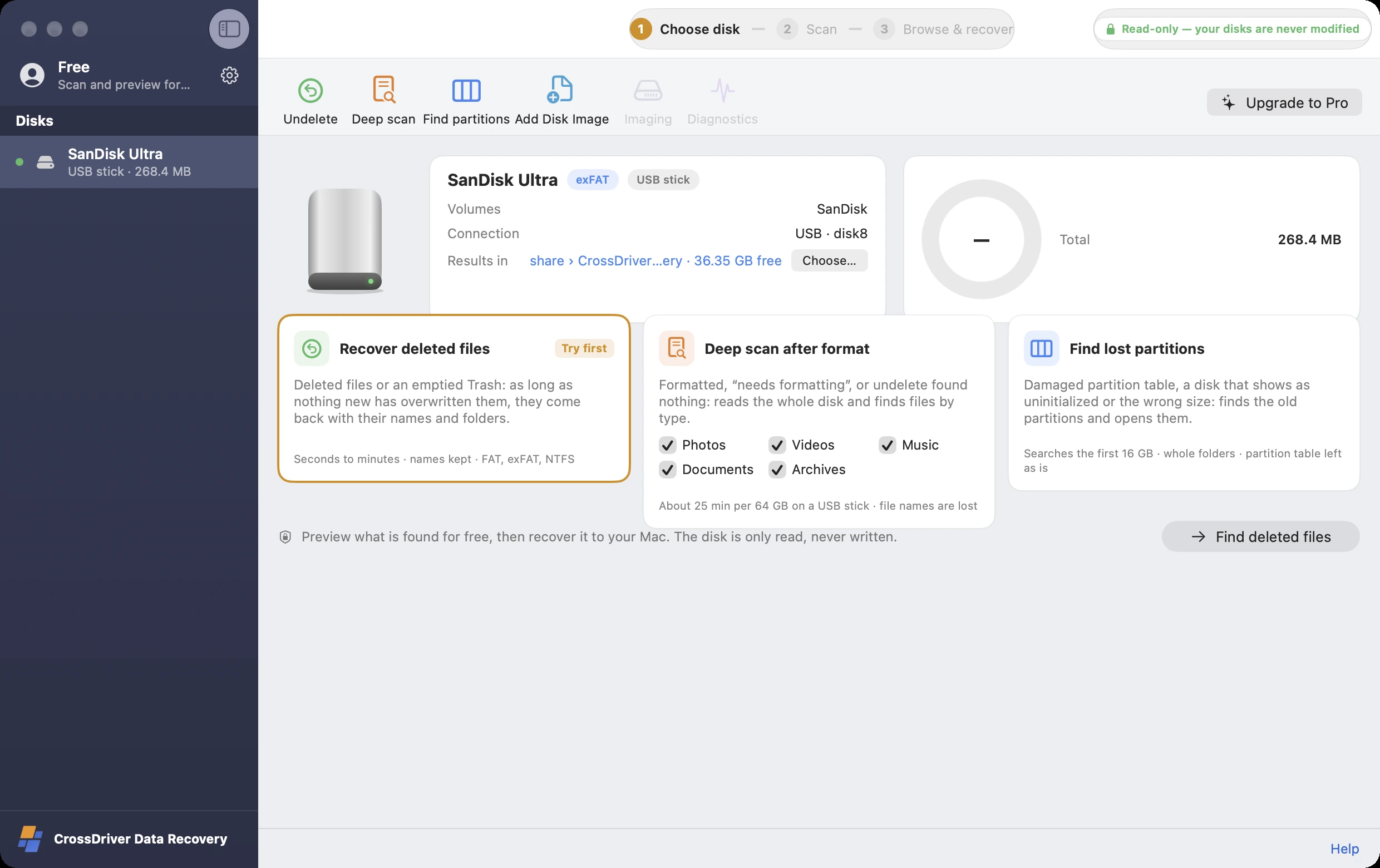
CrossDriver Data Recovery (Data recovery for Mac (USB drive, SD card, external drive)) screenshot: Shows up when plugged in: USB sticks, SD cards, external drives; Deleted: recovered with original names in seconds to minutes; Formatted: deep scan by file type; Lost partition: found and opened directly; Read-only throughout
1Shows up when plugged in: USB sticks, SD cards, external drives
2Deleted: recovered with original names in seconds to minutes
3Formatted: deep scan by file type
4Lost partition: found and opened directly
5Read-only throughout
CrossDriver Data RecoveryFree scan and preview · Recover 500 MB free

Deleted or formatted a USB stick or SD card?
Get your files back on Windows

CrossDriver Data Recovery: plug in a USB flash drive, SD card or external drive and choose how to recover — deleted files come back with their original names and folders; a drive that was formatted or says it "needs formatting" is deep-scanned block by block and files are recovered by type (photos, videos, documents and more) on any file system; when the partition table is damaged, the original partitions are found and opened directly. Read-only throughout, free preview first, and up to 500 MB recovered for free.

Opened read-only — nothing is written to the original diskNo kernel driverFiles never uploaded

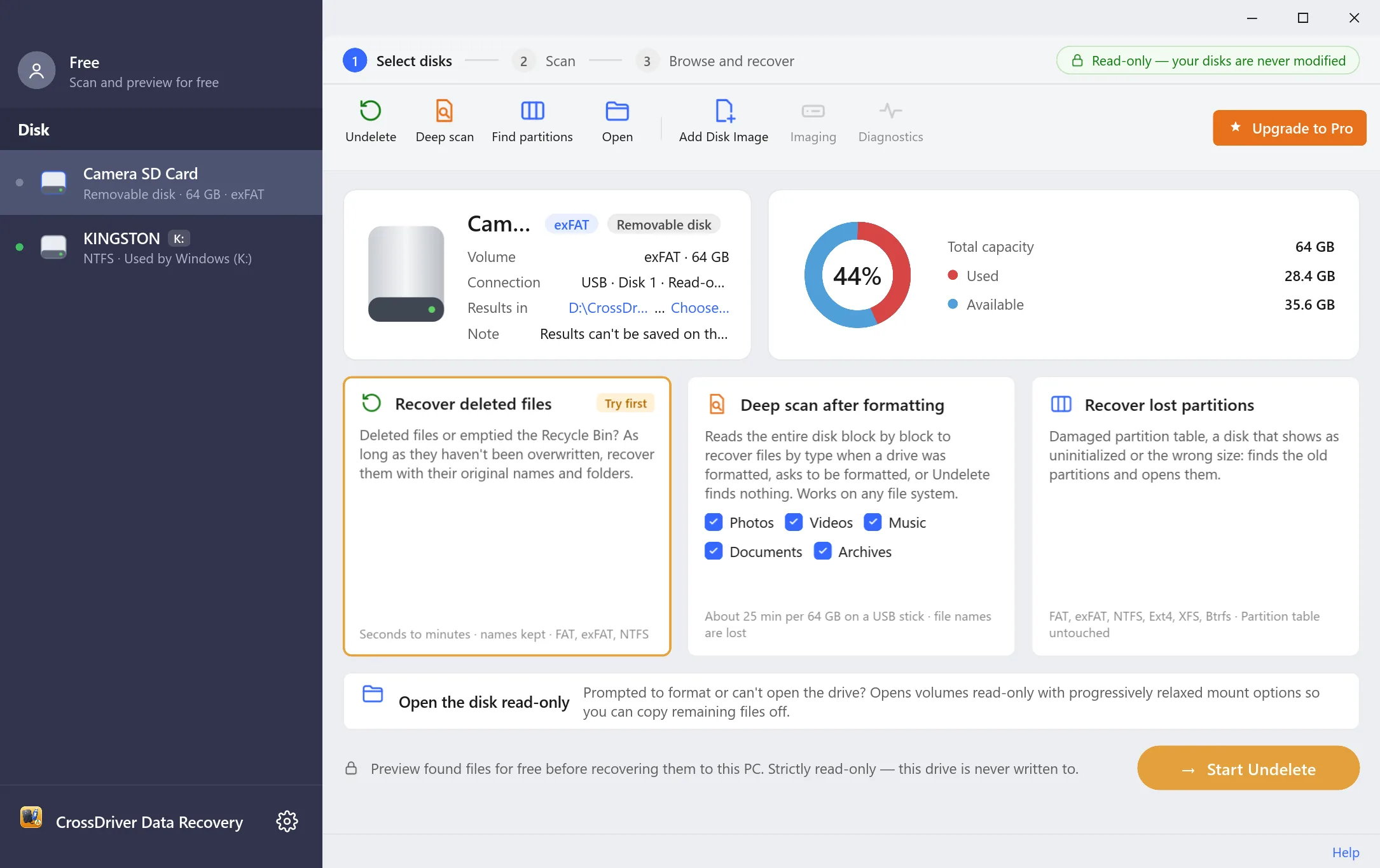
CrossDriver Data Recovery (Data recovery for Windows (USB drive, SD card, external drive)) screenshot: Shows up when plugged in: USB sticks, SD cards, external drives; Undelete: recover with original names; Formatted: deep scan by file type; Lost partition: found and opened directly; Read-only throughout
1Shows up when plugged in: USB sticks, SD cards, external drives
2Undelete: recover with original names
3Formatted: deep scan by file type
4Lost partition: found and opened directly
5Read-only throughout
When you need it

Files gone? They’re most likely still on the disk

Deleting and quick formatting only erase the “index”; the file contents stay where they were until new data overwrites them. The sooner you scan, the more you get back.

🗑

Deleted, Trash emptied

Files deleted from a USB stick or external drive, and they’re not in your Mac’s Trash anymore.

💾

Formatted by mistake

You clicked Format, or a camera or dash cam formatted the card.

⚠️

Asks to be formatted

As soon as you plug it in, you’re told it’s “not readable” or “needs to be formatted,” and it won’t open.

🧩

Partition gone

The disk shows as “uninitialized” or the wrong size, and the original partition has disappeared.

Hold on

Files missing? Do this first

✋

Stop writing to the disk

New files can overwrite exactly the ones you deleted. Stop taking photos, copying, and downloading to it.

✋

Don't click "Format" or "Initialize"

When asked to format, click “Cancel” on Windows or “Ignore” on a Mac.

✋

Don’t repair first

chkdsk and Disk Utility’s First Aid rewrite directory records. Get your files back first.

🔇

Strange noises? Power off first

If the drive clicks, won’t spin up, or keeps disconnecting, it has a physical fault. Take it to a professional data recovery service.

How it works

Three steps, no technical skills needed

Have another disk (or your Mac’s internal disk) with enough free space for the recovered files.

  1. 1

    Select disks

    Plug in the USB stick, SD card, or external drive, and it appears in the sidebar automatically.

  2. 2

    Choose a recovery method

    For deleted files, choose “Undelete”; for a formatted disk, choose “Deep scan” and select file types; for a missing partition, choose “Find partitions”; if it asks to be formatted but the volume is still there, choose “Open the disk read-only.”

  3. 3

    Preview and recover

    When the scan finishes, the files it found open automatically. Preview photos, videos, and documents for free, and once you’ve confirmed everything you need is there, recover it to your Mac.

01Undelete

Deleted files come back with their original names and folders

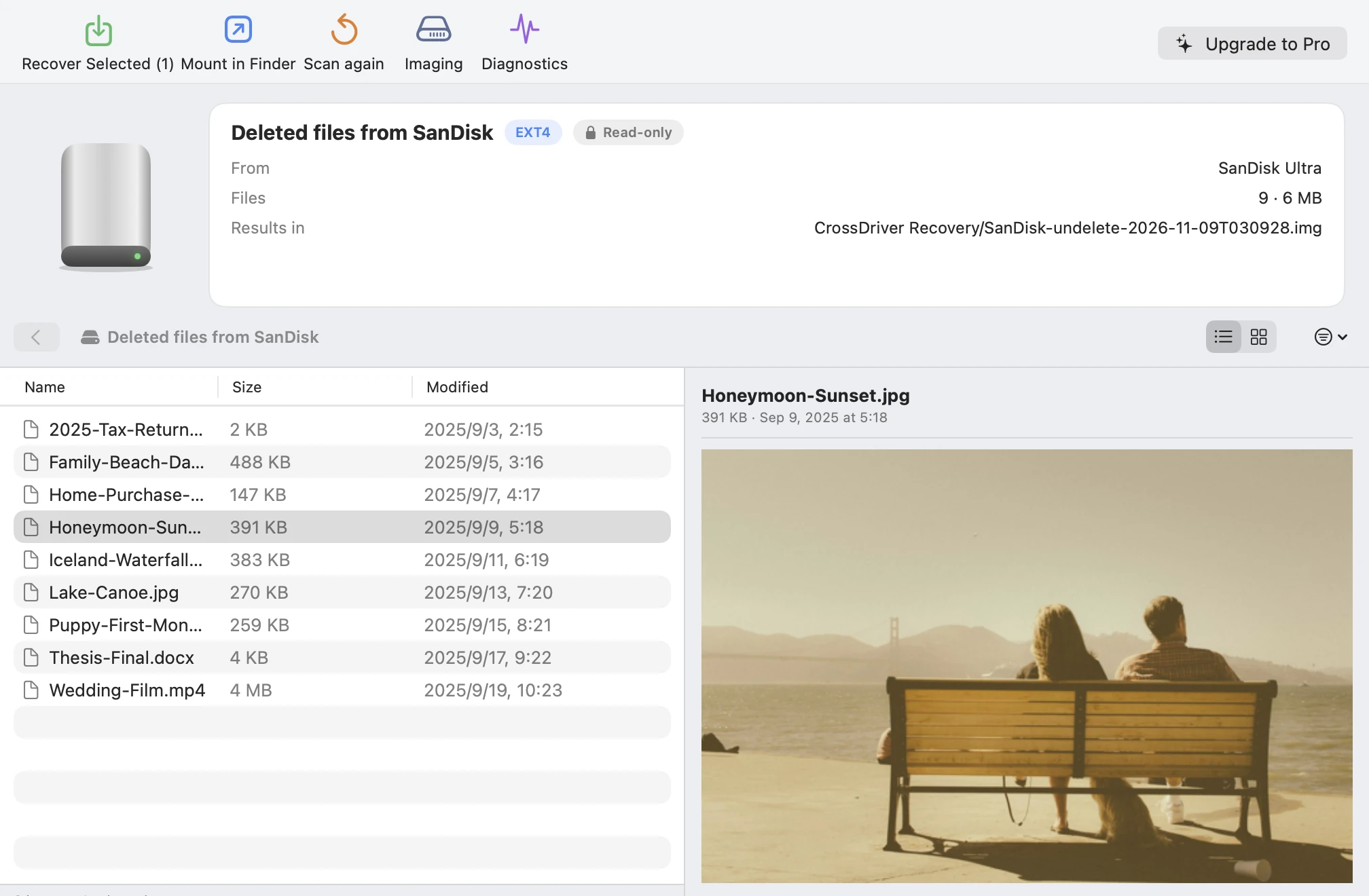
On FAT32, exFAT, and NTFS USB sticks, SD cards, and external drives, deleted files that haven’t been overwritten can be recovered with their original names and folders, usually in seconds to minutes.

  • 1File names and folders kept intact, non-English names included
  • 2Free preview of photos, videos, PDFs, and Office documents
  • 3Select files and recover them to your Mac in one click
CrossDriver Data Recovery (Data recovery for Mac (USB drive, SD card, external drive)) screenshot: Original file names, in any language; Free preview; Recover Selected
1Original file names, in any language
2Free preview
3Recover Selected
02Deep scan

Formatted or won’t open? Deep-scan it block by block

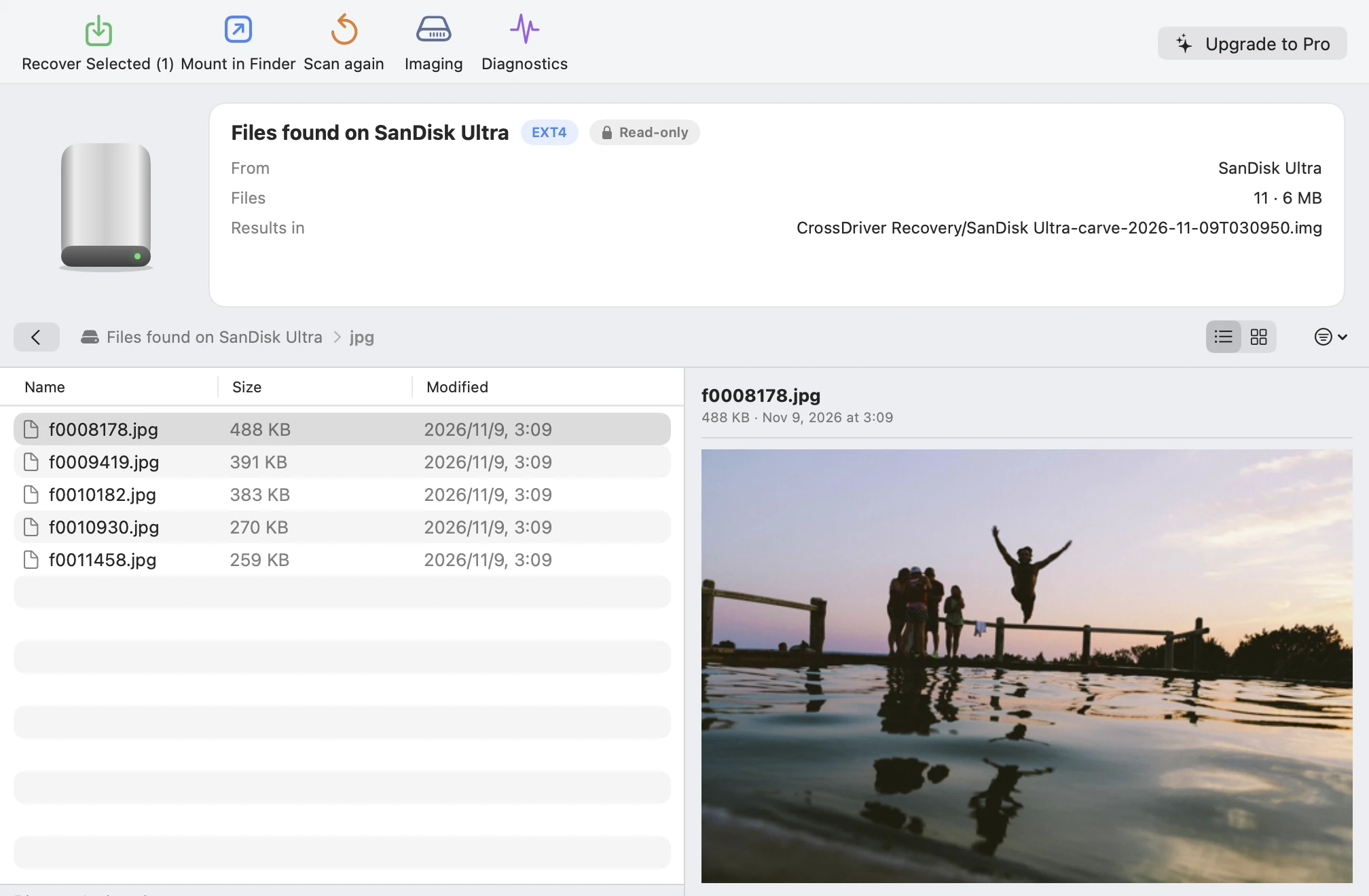
After a quick format, when a disk asks to be formatted, or when deleted files can no longer be found, a deep scan reads the entire disk and finds photos, videos, and documents by the signatures in their contents.

  • 1Choose types: photos, videos, music, documents, archives
  • 2Found files are sorted into folders by type and can be previewed right away
  • 3Stops automatically when the workspace runs low on space, so it never fills up your Mac

A deep scan can’t restore original file names or folders; files are named by number. Speed depends on the disk: about 25 minutes for a 64 GB USB stick.

CrossDriver Data Recovery (Data recovery for Mac (USB drive, SD card, external drive)) screenshot: Folders by file type; Instant preview; Numbered file names
1Folders by file type
2Instant preview
3Numbered file names
03Find partitions

Partition gone? Find it and open it directly

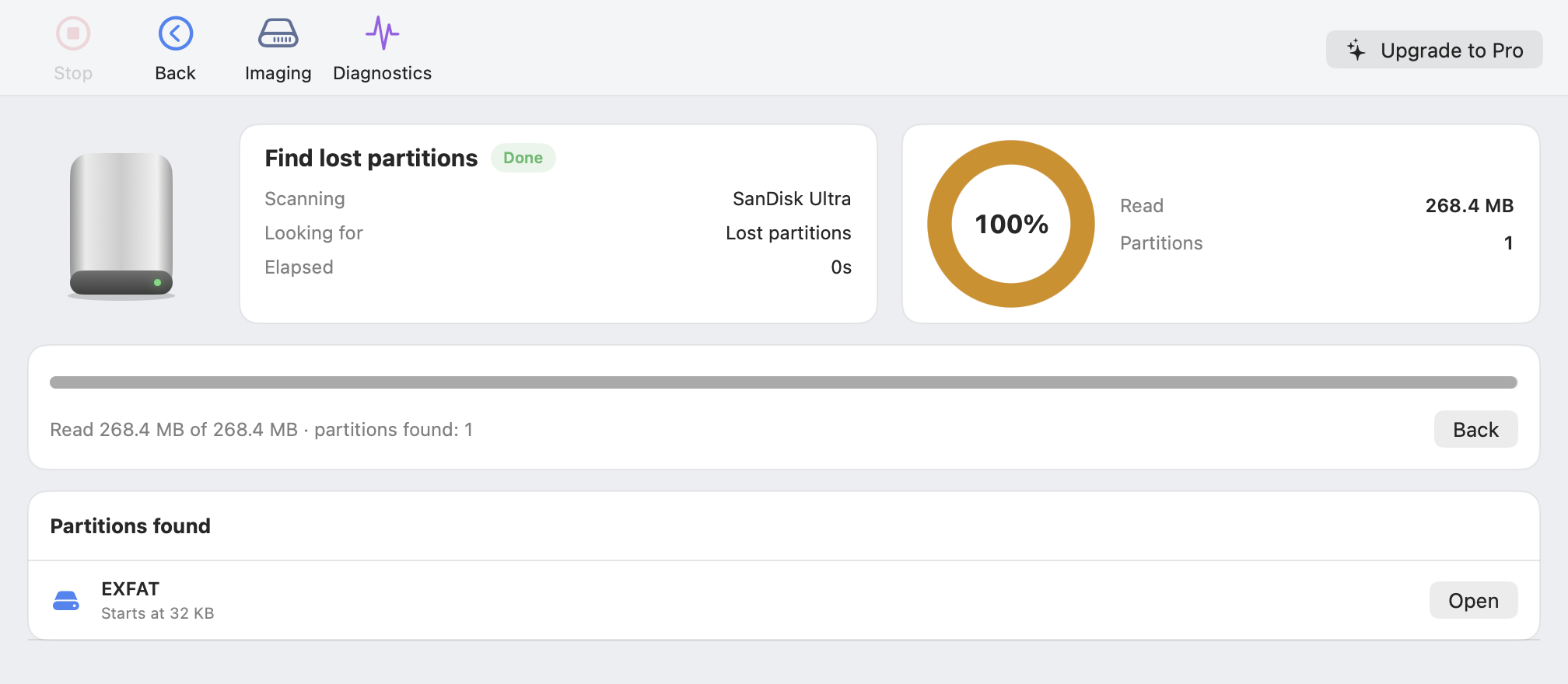
When the partition table is damaged, or the disk shows as “uninitialized” or the wrong size, Data Recovery searches the disk for the original file systems. Click “Open” on one it finds, and all your original folders are there.

  • 1Detects FAT32, exFAT, NTFS, Ext4, XFS, and Btrfs
  • 2Rebuilds partitions in memory only, without rewriting the partition table on disk
  • 3Once opened, browse and recover like any normal disk
CrossDriver Data Recovery (Data recovery for Mac (USB drive, SD card, external drive)) screenshot: Search progress; Partitions found; Open directly
1Search progress
2Partitions found
3Open directly
Tested on real PCs

Measured results

Measured in November 2026 with CrossDriver Data Recovery on a MacBook:

4–5 s

Undelete on a 64 GB USB stick

SanDisk 64 GB USB stick (NTFS): undelete finished in 4–5 seconds, with deleted files recovered under their original names.

25 min

64 GB deep scan

A whole-disk scan of the same USB stick for photos ran at about 41 MB/s and found 166 files (1.3 GB).

TRIM

After formatting an SSD

After an SSD is formatted or files are deleted, the system usually sends TRIM to wipe the data blocks, so even a deep scan rarely recovers them. USB sticks and SD cards are generally unaffected.

04Read-only throughout

A recovery tool
must never write to your disk

Data Recovery reads disks inside an isolated, lightweight Linux environment, and disks are handed to it read-only. Recovered files are written to another disk you choose.

🔒 Read-only access

On the Mac

The disk is passed to the recovery engine as a read-only device, so writing is blocked at the system level.

🔒 Results saved elsewhere

Workspace

Scan results are saved to a folder you choose, never back to the source disk. It stops automatically when space runs low.

🔒 Partition table untouched

Find partitions

Found partitions are opened in memory only; the partition table on disk stays exactly as it was.

No kernel extension, no Recovery Mode, and no reduction in your Mac's system security.

What's supported

Supported formats and recovery methods

All three recovery methods work on FAT32, exFAT and NTFS. Not sure? Run a free scan first: if you can see a file in the preview, you can recover it.

Undelete (with original names)Deep scan after formattingFind partitions
FAT32 (USB sticks, SD cards)✓✓✓
exFAT (large USB sticks, SDXC cards, cameras)✓✓✓
NTFS (Windows external drives)✓✓✓
Ext4, XFS, Btrfs (Linux, Raspberry Pi)—SupportedSupported
APFS, Mac OS Extended (HFS+)—Supported—
Data overwritten by new files———
An SSD after formatting or repartitioning (TRIM)———
Physical disk failure (strange noises, not detected)———

A deep scan doesn’t depend on the file system; it identifies common photo, video, music, document, and archive formats by their contents. For a disk with bad sectors, copy it with “Imaging” first, then scan the image. “Supported” means the feature is available and real-device testing is in progress.

Works with

Works with mainstream Macs and drives of every brand

Supported Macs

Models
MacBook Air, MacBook Pro, iMac, Mac mini, Mac Studio, Mac Pro
Chip
Apple silicon (the entire M1–M6 families, including Pro, Max and Ultra) and Intel processors
System
macOS 12 Monterey, 13 Ventura, 14 Sonoma, 15 Sequoia, 26 Tahoe and later

Supported disks

Type
USB sticks, SD / microSD / CF cards, external hard drives, portable SSDs, and SATA / NVMe drives in enclosures
Connection
USB-A, USB-C, Thunderbolt, card readers, drive enclosures, drive docks
Brands
Works with every brand, such as Seagate, WD (Western Digital), Toshiba, Samsung T7 / T9, SanDisk, Kingston, Lexar, LaCie, UGREEN, ORICO and more

Common uses

Cameras and drones
Photos and videos deleted from camera, action cam, or drone memory cards, or a card that was formatted
Dash cams
Get important clips back before the dash cam records over them
USB flash drives & external drives
Documents deleted by mistake, disks formatted by accident, disks that ask to be formatted

RAID drives taken out of a NAS have to be read together; use Data Recovery NAS for those.

05Pricing

See it first, then pay

Scanning, finding partitions, and previewing are free with no time limit, and you can recover 500 MB for free — 2 GB once you share the app with friends. For more, upgrade to Pro.

Free

US$0

  • Undelete, deep scan, find partitions
  • Browse all found files
  • Preview photos, videos & documents
  • Recover 500 MB free, 2 GB after sharing
  • Disk health check & diagnostics
Free Download
Recommended

Data Recovery Pro

US$49.95 Lifetime license · 1 year US$29.95 · 1 month US$19.95

  • Everything in Free
  • Unlimited, verified file recovery to your Mac
  • Open found files in Finder
  • Image failing disks · Unlock encrypted volumes
Buy Pro

Data Recovery NAS Pro

US$69.95 Lifetime license · 1 year US$39.95

  • Everything in Data Recovery Pro
  • RAID / LVM / ZFS from Synology, QNAP, and other NAS
  • One license, two apps
Learn about Data Recovery NAS

Each license covers 1 Mac and can be deactivated in the App and moved to another Mac — no account needed. Once activated it works offline: the App goes online once every 30 days to renew the license automatically (no payment involved), with a further 14-day grace period when offline. A lifetime license includes free updates to all future versions of this App, including major versions; 1-year and 1-month licenses are never charged automatically — the App reminds you to renew before they expire. After-sales and refund policy. Each code can be moved to another computer 3 times on your own; after that, contact support.

Data never leaves your Mac

Your files stay on your Mac

Read-only

Nothing written to the source disk

The source disk stays read-only; scan results are written to another disk you choose.

0

bytes uploaded

File names, paths and contents never leave your Mac, and everything works offline.

20

interface languages

20 languages, including 简体中文, 繁體中文, English, 日本語, 한국어, Deutsch, and Français. Native on Apple silicon and Intel.

FAQ

Q&A

Can I recover files deleted from a USB stick?

Usually, yes. Deleting only erases the directory entry; the file contents remain until new data overwrites them. Stop writing to the USB stick and scan it with “Undelete.” On FAT32, exFAT, and NTFS USB sticks, files come back with their original names and folders.

I emptied the Trash on my Mac. Can I get the files back?

For files on a USB stick, SD card, or external drive, yes: use “Undelete” after the Trash is emptied. Your Mac’s internal APFS disk uses encryption and TRIM, so deleted files there are very hard to recover; restore from a Time Machine backup instead.

Can I recover files from a formatted USB stick or SD card?

After a quick format, usually yes: “Deep scan” reads the whole disk block by block and recovers photos, videos, documents, and more by type, though original file names and folders can’t be restored. A full format (with “Quick Format” unchecked on Windows) fills the disk with zeros, and then nothing can be recovered.

My camera’s SD card was formatted. Can the photos be recovered?

A camera’s “Format” is usually a quick format, so the photos are most likely still there. Stop shooting on the card, then run a deep scan with “Photos” and “Videos” selected. JPG, HEIC, common RAW formats, MP4, and MOV are all recognized.

Can a formatted SSD be recovered?

Usually not. When you format or repartition an external SSD on a Mac, macOS sends TRIM to the SSD, which clears the old data at once; no software can get it back. USB sticks, SD cards, and hard drives are usually not affected. For files deleted on an SSD, scan as soon as possible.

It says “needs to be formatted” when I plug it in. What should I do?

Don’t format it yet. Scan it read-only with “Find lost partitions” or “Deep scan,” recover whatever files you can, and only then consider formatting. For detailed steps, see USB drive says it needs to be formatted.

How long does a scan take?

Undelete usually takes seconds to minutes. A deep scan reads the whole disk, so it depends on capacity and speed: about 25 minutes for a 64 GB USB stick. Find partitions searches the first 16 GB of the disk first.

Where are found files stored, and how much space do they take?

In the workspace you choose (by default, the app’s own folder). We recommend another disk with enough free space. A deep scan uses as much space as it finds, up to nearly the size of the source disk; if space runs low, it stops automatically, and you can still browse the files found so far.

Can the free version recover files?

Yes. Each Mac can recover 500 MB for free; in the version downloaded from our website, sharing the app with friends once raises that to 2 GB. Scanning, finding partitions, and previewing are unlimited. To recover more, or to open the found files in Finder, upgrade to Pro.

How is it different from Data Recovery NAS?

Data Recovery is built for single USB sticks, SD cards, and external drives, and costs less. Data Recovery NAS can also rebuild RAID, LVM, and ZFS from Synology, QNAP, and other NAS, and includes everything in Data Recovery: buy Data Recovery NAS Pro, and Data Recovery is unlocked too.

Could it damage my disk?

No. The source disk stays read-only throughout. Found partitions are opened in memory only, without rewriting the partition table, and recovered files are written to another disk you choose.

Do I need to install a kernel extension or disable SIP?

No. Data Recovery uses the Virtualization framework built into macOS to read disks inside an isolated, lightweight Linux environment.

When should I go to a professional?

If a drive makes strange noises, won’t spin up, or keeps disconnecting, or if no computer detects it at all or its capacity shows as 0, it most likely has a physical fault. Stop powering it and contact a professional data recovery service.

When you need it

Files gone? They’re most likely still on the disk

Deleting and quick formatting only erase the “index”; the file contents stay where they were until new data overwrites them. The sooner you scan, the more you get back.

🗑

Deleted, Recycle Bin emptied

Files on a USB flash drive or external drive were deleted and aren't in the Recycle Bin.

💾

Formatted by mistake

You clicked Format, or a camera or dash cam formatted the card.

⚠️

Asks to be formatted

Plugging it in says "You need to format the disk in drive before you can use it" and it won't open.

🧩

Partition gone

Disk Management shows "Unallocated" or the wrong size; the original partition is gone.

Hold on

Files missing? Do this first

✋

Stop writing to the disk

New files can overwrite exactly the ones you deleted. Stop taking photos, copying, and downloading to it.

✋

Asked to format? Click "Cancel"

Windows says the disk needs formatting, or Disk Management asks to initialize it: click "Cancel" either way.

✋

Don't run chkdsk first

chkdsk /f rewrites directory records; find your files first.

🔇

Strange noises? Power off first

If the drive clicks, won’t spin up, or keeps disconnecting, it has a physical fault. Take it to a professional data recovery service.

How it works

Three steps, no technical skills needed

Have another disk with enough space (or another partition of this PC) ready for the recovered files; results can't go on the drive being recovered.

  1. 1

    Select disks

    Plug in the USB stick, SD card, or external drive, and it appears in the sidebar automatically.

  2. 2

    Choose a recovery method

    For deleted files, choose “Undelete”; for a formatted disk, choose “Deep scan” and select file types; for a missing partition, choose “Find partitions”; if it asks to be formatted but the volume is still there, choose “Open the disk read-only.”

  3. 3

    Preview and recover

    After the scan the files found open automatically; preview photos, videos and documents for free, and once everything you need is there, recover it to this PC.

01Choose a method

Deleted, formatted, lost partition: a recovery method for each

Undelete: on FAT32, exFAT and NTFS drives, deleted files that haven't been overwritten come back with their original names and folders, usually in seconds to minutes. Deep scan: finds photos, videos and documents by their content signatures, on any file system. Find partitions: finds the original file system and opens it directly.

  • 1Appears in the sidebar when plugged in
  • 2Undelete: recover with original names
  • 3Formatted: deep scan by file type
  • 4Lost partition: found and opened directly
  • 5Read-only throughout
CrossDriver Data Recovery (Data recovery for Windows (USB drive, SD card, external drive)) screenshot: Appears in the sidebar when plugged in; Undelete: recover with original names; Deep scan by type; Find partitions; Read-only throughout
1Appears in the sidebar when plugged in
2Undelete: recover with original names
3Deep scan by type
4Find partitions
5Read-only throughout
02Browse and recover

Files found are sorted by type — preview them free first

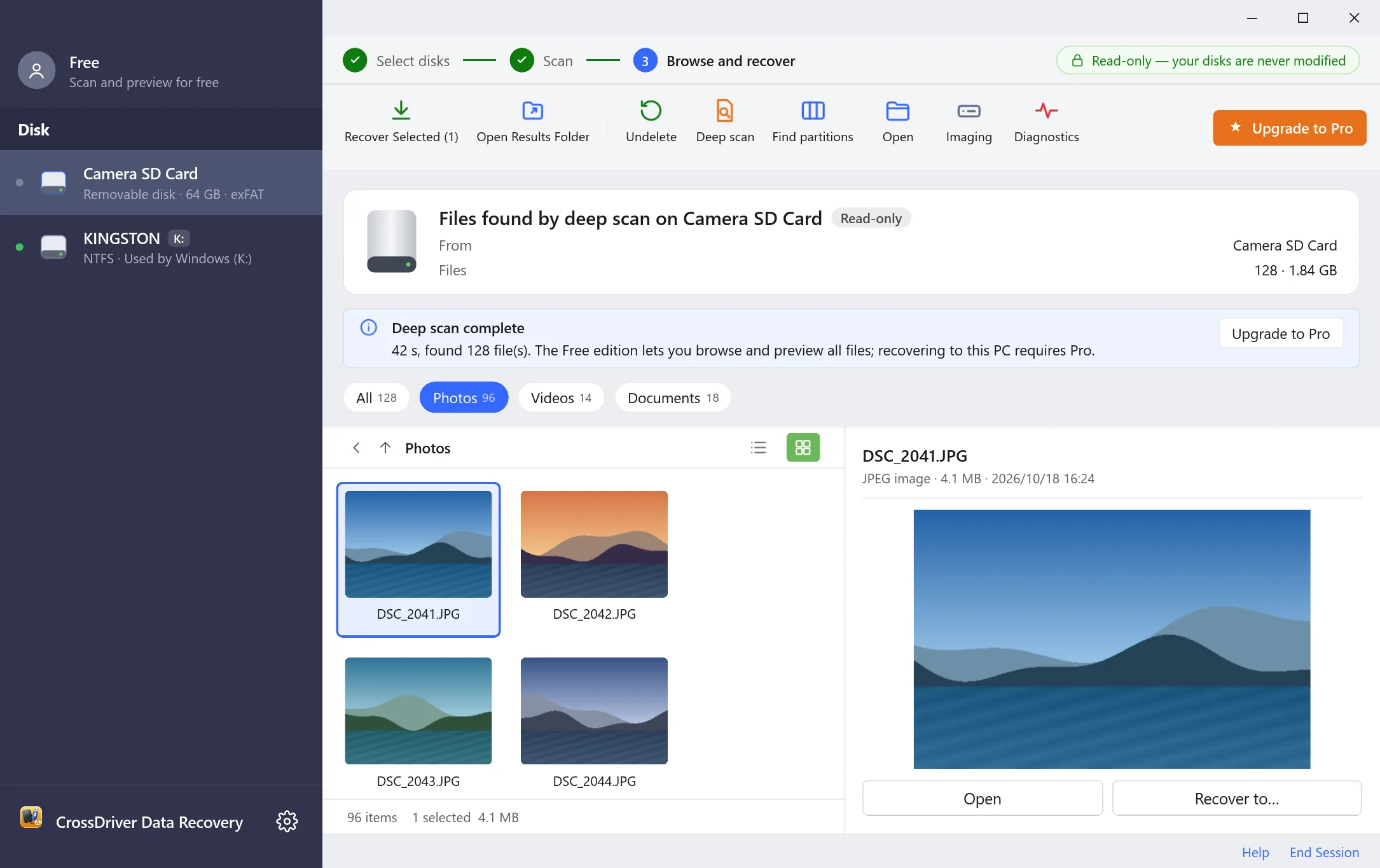
Deep scan results are grouped into photos, videos, music, documents and archives; click a type to see only that. The free edition can browse and preview every file and recover 500 MB for free (2 GB after sharing); upgrade to Pro for more.

  • 1Grouped by type
  • 2Files named by number
  • 3Free preview
  • 4Recover Selected

A deep scan can't recover original names and folders, so files are named by number; the time depends on capacity and the speed of the drive itself. It stops automatically when the working folder runs out of space, so it never fills up your PC.

CrossDriver Data Recovery (Data recovery for Windows (USB drive, SD card, external drive)) screenshot: Grouped by type; Files named by number; Free preview; Recover Selected
1Grouped by type
2Files named by number
3Free preview
4Recover Selected
03Windows only

A drive Windows is using can be scanned safely too

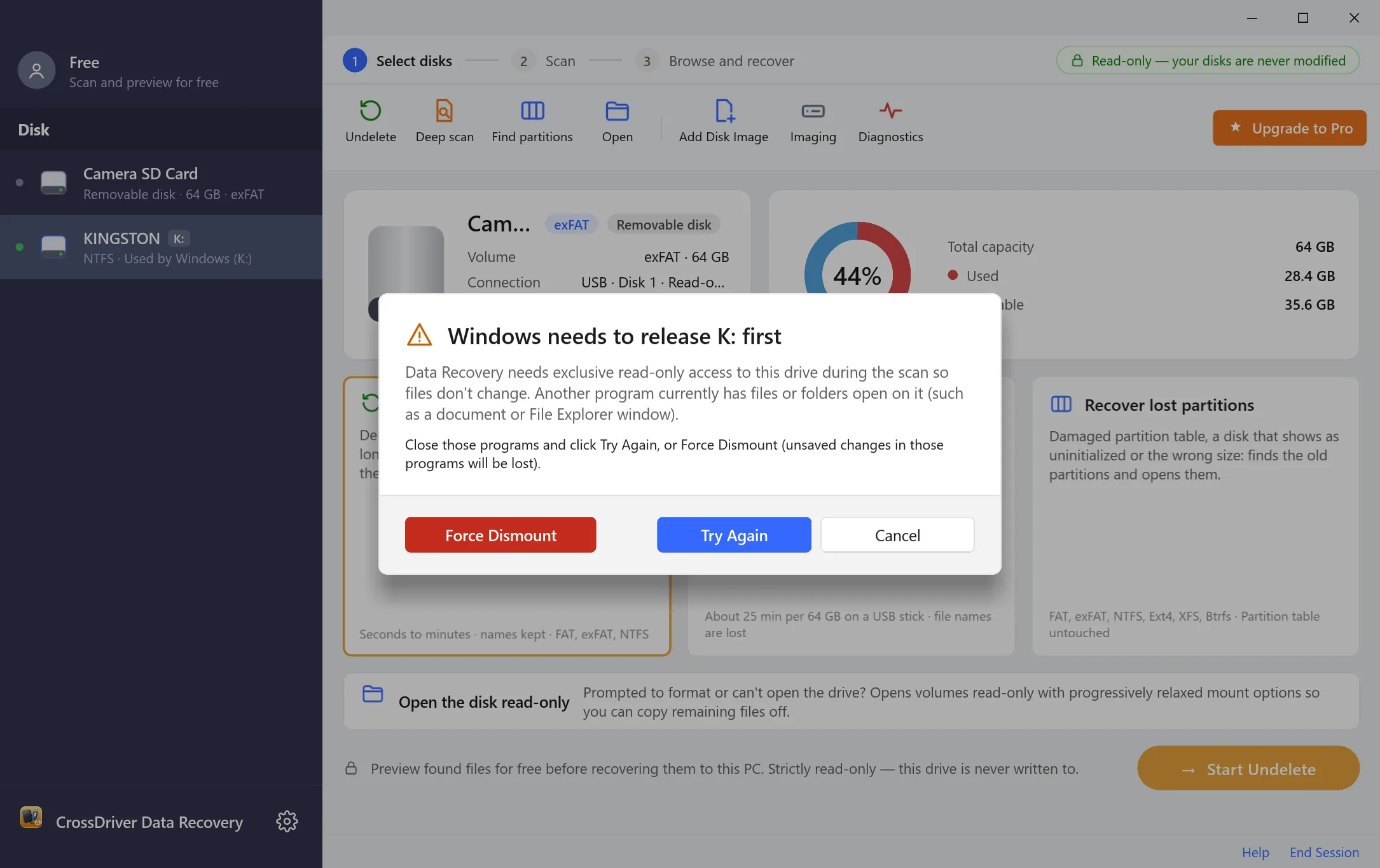
An NTFS, FAT32 or exFAT USB drive with a drive letter is in use by Windows, and its files are still changing. Before scanning, Data Recovery asks Windows to dismount the volume and takes it read-only for itself; if programs have files or folders on the drive open, it first asks you to close them.

  • 1A USB drive Windows is using
  • 2Tells you a program has files on the drive open
  • 3Close the programs and click "Retry"
  • 4Or confirm and force the dismount

Forcing the dismount loses unsaved work in those programs, so it only happens after you confirm; drives held by another CrossDriver app or other software (such as VeraCrypt or a virtual machine) are never forced.

CrossDriver Data Recovery (Data recovery for Windows (USB drive, SD card, external drive)) screenshot: A USB drive Windows is using; A program has files on the drive open; Close the programs and retry; Force dismount after confirming
1A USB drive Windows is using
2A program has files on the drive open
3Close the programs and retry
4Force dismount after confirming
04Read-only throughout

A recovery tool
must never write to your disk

Data Recovery reads the disk inside an isolated, lightweight Linux virtual machine, which only gets the disk read-only; files found are written to another disk of your choice.

🔒 Read-only access

Windows side

The disk is handed to the recovery engine read-only, so nothing can be written at the system level.

🔒 Results saved elsewhere

Workspace

Scan results go into a folder you choose, which can't be on the drive being recovered; it stops automatically when space runs out.

🔒 Partition table untouched

Find partitions

Found partitions are opened in memory only; the partition table on disk stays exactly as it was.

No kernel driver: the recovery engine runs on Windows' built-in Virtual Machine Platform.

What's supported

Supported formats and recovery methods

A deep scan doesn't depend on the file system, so a drive in any format can be recovered by type; on FAT32, exFAT and NTFS drives, deleted files can even be recovered together with their original names and folders.

Open read-onlyUndelete (with original names)Deep scan (by type)Find partitions
FAT32, exFAT, NTFS (USB flash drives, SD cards, Windows external drives)✓✓✓✓
Ext4, XFS, Btrfs, F2FS (Linux, Raspberry Pi, Android)✓— (Btrfs can recover from snapshots)✓✓ (F2FS to be tested)
APFS, HFS+ (Mac)✓—✓To be evaluated
ZFS (single disk)✓—✓—
LUKS, BitLocker encrypted volumesSame as above once unlockedSame as above once unlockedUnlock first—
Data overwritten by new files————
An SSD after formatting or repartitioning (TRIM)————
Physical disk failure (strange noises, not detected)————

A deep scan identifies common photo, video, music, document and archive formats by their contents. For a disk with bad sectors, copy it with “Imaging” first, then scan the image. Items marked “To be tested” or “To be evaluated” are being verified; the release notes are the reference.

Works with

Works with mainstream PCs and drives of every brand

PCs

System
Windows 10 2004 (19041) and later, Windows 11; Home, Pro and Education are all supported
Processor
x64 (Intel, AMD) and ARM64 (e.g. Snapdragon); one installer that picks the right one when installing
Type
Desktops, laptops, mini PCs; running in a virtual machine or cloud desktop needs nested virtualization

Supported disks

Type
USB sticks, SD / microSD / CF cards, external hard drives, portable SSDs, and SATA / NVMe drives in enclosures
Connection
USB-A, USB-C, Thunderbolt, card readers, drive enclosures, docking stations; USB flash drives and card readers supported as well
Brands
Works with every brand, such as Seagate, WD (Western Digital), Toshiba, Samsung T7 / T9, SanDisk, Kingston, Lexar, LaCie, UGREEN, ORICO and more

Common uses

Cameras and drones
Photos and videos deleted from a memory card, or the card formatted
Dash cams
Get important clips back before they're overwritten in a loop
USB flash drives & external drives
Documents deleted by mistake, disks formatted by accident, disks that ask to be formatted

RAID drives taken out of a NAS have to be read together; use Data Recovery NAS for those.

05Pricing

See it first, then pay

Scanning, finding partitions, and previewing are free with no time limit, and you can recover 500 MB for free — 2 GB once you share the app with friends. For more, upgrade to Pro.

Free

US$0

  • Undelete, deep scan, find partitions
  • Browse all found files
  • Preview photos, videos & documents
  • Recover 500 MB free, 2 GB after sharing
  • Disk diagnostics
Free Download
Recommended

Data Recovery Pro

US$39.95 Lifetime license · 1 year US$24.95 · 1 month US$14.95

  • Everything in Free
  • Recover files to this PC, unlimited, with verification
  • Open the files found read-only in File Explorer
  • Image failing disks · Unlock encrypted volumes
Buy Pro

Data Recovery NAS Pro

US$59.95 Lifetime license · 1 year US$34.95

  • Everything in Data Recovery Pro
  • RAID / LVM / ZFS from Synology, QNAP, and other NAS
  • One license, two apps
Learn about Data Recovery NAS

Each license is for 1 PC and can be deactivated in the app to move it to another; works offline, no account needed. Lifetime licenses get free updates for life, including future major versions. Prices are in US dollars, purchased on crossdriver.com; Mac and Windows licenses are separate. After-sales and refund policy. Each code can be moved to another computer 3 times on your own; after that, contact support.

Data stays on your PC

Your files stay on your PC

0

bytes written to the source disk

The source disk stays read-only; scan results are written to another disk you choose.

0

bytes uploaded

File names, paths and contents never leave your PC, and everything works offline.

✓

USB drives at full speed

USB flash drives attach read-only through the engine; measured read speed is the speed of the drive itself.

FAQ

Q&A

Can I recover files deleted from a USB stick?

Usually, yes. Deleting only erases the directory entry; the file contents remain until new data overwrites them. Stop writing to the USB stick and scan it with “Undelete.” On FAT32, exFAT, and NTFS USB sticks, files come back with their original names and folders.

The Recycle Bin is emptied — can the files still be recovered?

Files deleted from USB flash drives, SD cards and external drives skip the Recycle Bin, and if the Recycle Bin was emptied, "Undelete" can still scan for them. Data Recovery is for single external disks such as USB flash drives, SD cards and external drives.

Can I recover files from a formatted USB stick or SD card?

Most files can be recovered after a quick format: "Deep scan" reads the whole drive block by block and recovers files by type — photos, videos, documents and so on — but the original names and folders can't be restored. A full format (with "Quick Format" unticked) fills the drive with zeros, and nothing can be recovered.

Can a formatted SSD be recovered?

Usually not. Formatting or repartitioning an SSD makes the system run TRIM, which wipes the old data at once, and no software can get it back. USB flash drives, SD cards and hard disks are generally not affected.

It says “needs to be formatted” when I plug it in. What should I do?

Click "Cancel" and don't format yet. Scan read-only with "Open disk read-only", "Find lost partitions" or "Deep scan", and recover whatever files you find first. If it's a Mac or Linux drive, it was never broken: open it with for Mac Disks or for Linux Disks. See USB drive asks to be formatted on Windows.

Can it scan USB flash drives? Will it be slow?

Yes. USB flash drives are forwarded read-only to the recovery engine by the background service; measured read speed is the speed of the drive itself — the drive is the bottleneck.

Why must the drive letter be "released" before scanning?

An NTFS, FAT32 or exFAT volume mounted by Windows keeps changing, which would make scan results inaccurate. Data Recovery first asks Windows to dismount the volume, then scans it read-only and exclusively; afterwards it gives it back to Windows.

Can a BitLocker-encrypted USB drive be recovered?

Yes, once unlocked: after a read-only unlock with the password, 48-digit recovery key or .BEK file, both undelete and deep scan work.

Can the free version recover files?

Yes. Each PC can recover 500 MB for free, raised to 2 GB once you share the app with a friend from inside it. Scanning, finding partitions and previewing are unlimited. To recover more, or to open the files found in File Explorer, upgrade to Pro.

How is it different from Data Recovery NAS?

Data Recovery is made for single USB flash drives, SD cards and external drives. Data Recovery NAS also rebuilds the RAID, LVM and ZFS of Synology, QNAP and other NAS units and includes everything in Data Recovery: buy Data Recovery NAS Pro and Data Recovery is unlocked as well.

Could it damage my disk?

No. The source disk stays read-only throughout. Found partitions are opened in memory only, without rewriting the partition table, and recovered files are written to another disk you choose.

What do I need to turn on?

Windows' built-in Virtual Machine Platform, with one restart after turning it on the first time; no kernel driver is installed. See Turn on Virtual Machine Platform.

When should I go to a professional?

If a drive makes strange noises, won’t spin up, or keeps disconnecting, or if no computer detects it at all or its capacity shows as 0, it most likely has a physical fault. Stop powering it and contact a professional data recovery service.

If your files haven’t been overwritten, there’s still a chance

Download Data Recovery and run a free scan to see whether your files are still there.

macOS 12 or later · Apple silicon & Intel · Privacy Policy · Pricing · Open-Source Licenses

Downloads are counted anonymously; no personal information is recorded.