




CrossDriver for Mac DisksWindows edition · Free version, no time limit · 7-day Pro trial

Mac external drives,
plugged into a Windows PC, open right away

Windows doesn't understand Mac APFS and HFS+ and just says the disk needs formatting. Install CrossDriver for Mac Disks and Mac external drives, encrypted drives and Time Machine backup drives appear in File Explorer with drive letters, so photos and documents open directly; Time Machine backups can be browsed by point in time, and file properties even show "Previous versions".

APFS · encrypted APFS · HFS+Time Machine backupsNo kernel driver

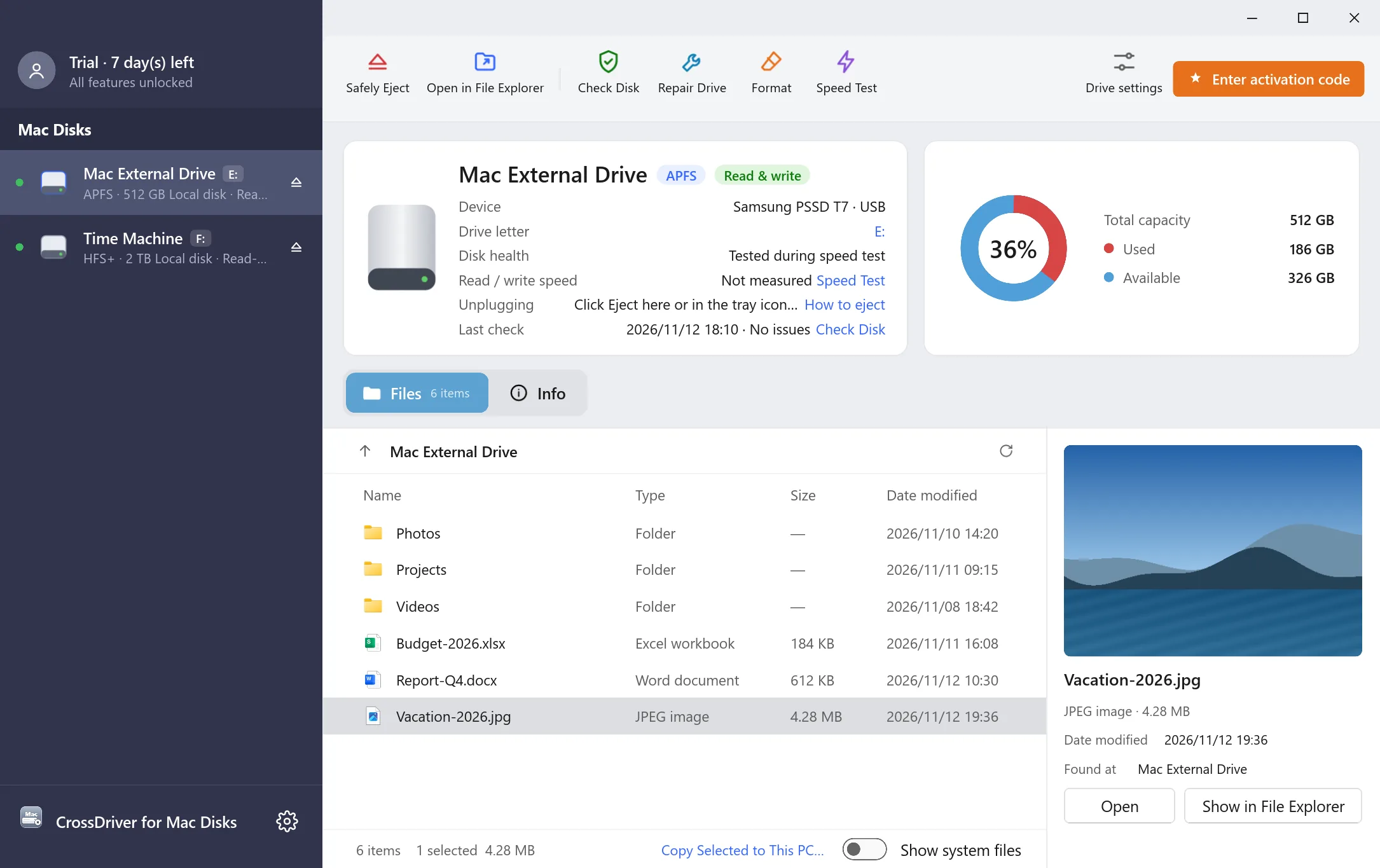
CrossDriver for Mac Disks (APFS / HFS+ for Windows (read Mac drive on Windows)) screenshot: Detects APFS volumes when plugged in; APFS writing: experimental, turned on per drive; Open in File Explorer; Preview photos, videos, documents directly
1Detects APFS volumes when plugged in
2APFS writing: experimental, turned on per drive
3Open in File Explorer
4Preview photos, videos, documents directly

Supported formats

APFSEncrypted APFSMac OS Extended (HFS+)Time Machine backupsOther partitions of a Boot Camp disk
Use cases

When you use both Mac and Windows

💼

Windows at work, Mac at home

Files copied on the Mac open directly on the Windows PC at work.

🕘

The Mac is broken, the backup isn't

Mac in for repair or replaced by a Windows PC: get your files back from the Time Machine backup drive.

🎞

Video footage drives

APFS footage drives formatted on a Mac, read on a Windows workstation.

💻

An old MacBook's drive

Put the drive from an old Mac into an enclosure and copy your files off on a Windows PC.

01File Explorer

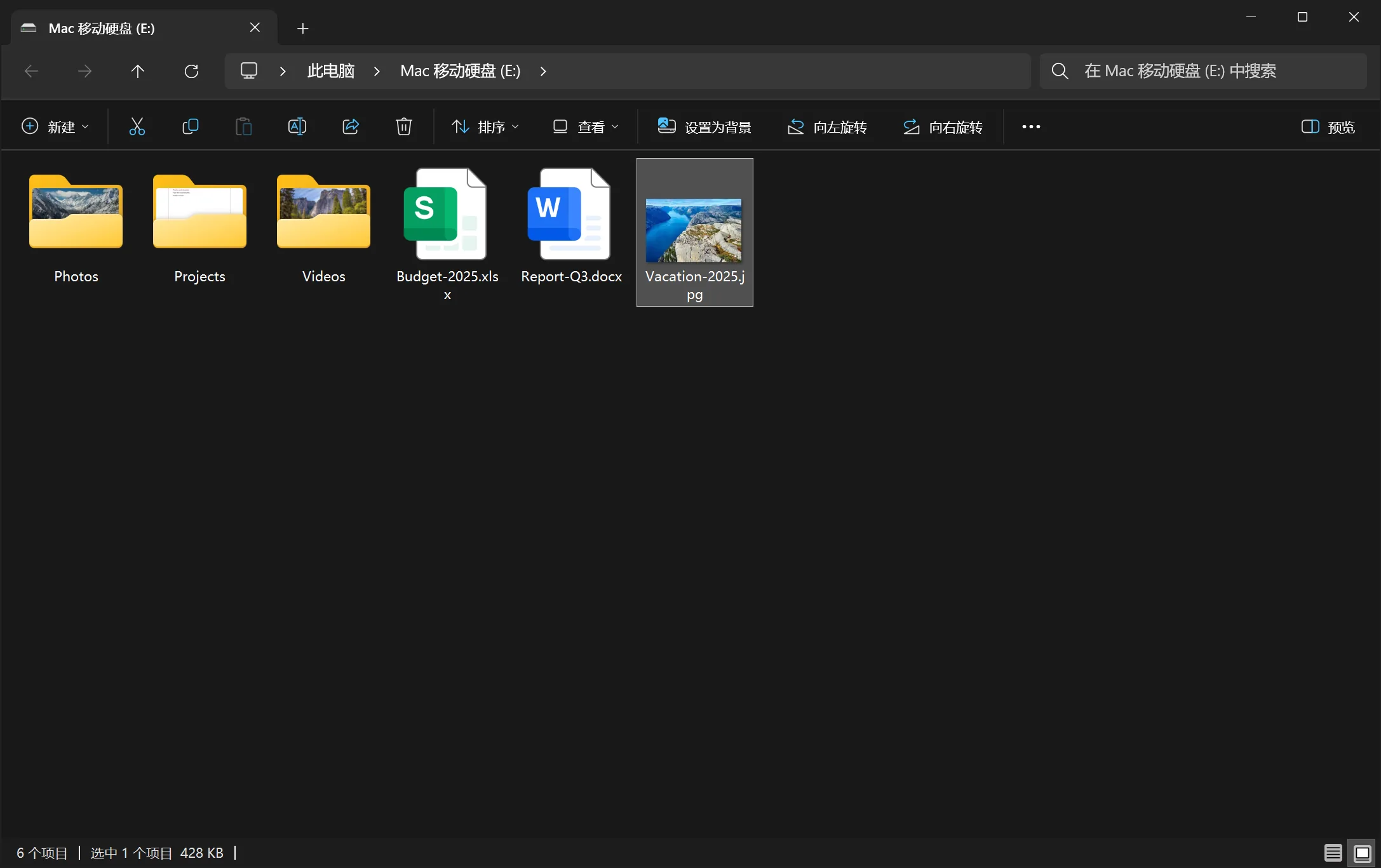
Mac drives get their own drive letters in File Explorer

for Mac Disks detects every volume in an APFS container and every HFS+ disk and assigns drive letters. Open and copy files in File Explorer like any other drive, and any program can open the photos and documents inside.

  • Mac drives appear in "This PC" with drive letters
  • Time Machine backup drives get a drive letter too
  • Open and copy files directly
CrossDriver for Mac Disks (APFS / HFS+ for Windows (read Mac drive on Windows)) screenshot: Mac drive letters; Open and copy directly
1Mac drive letters
2Open and copy directly
02Experimental

APFS writing: data safety first, turned on per drive

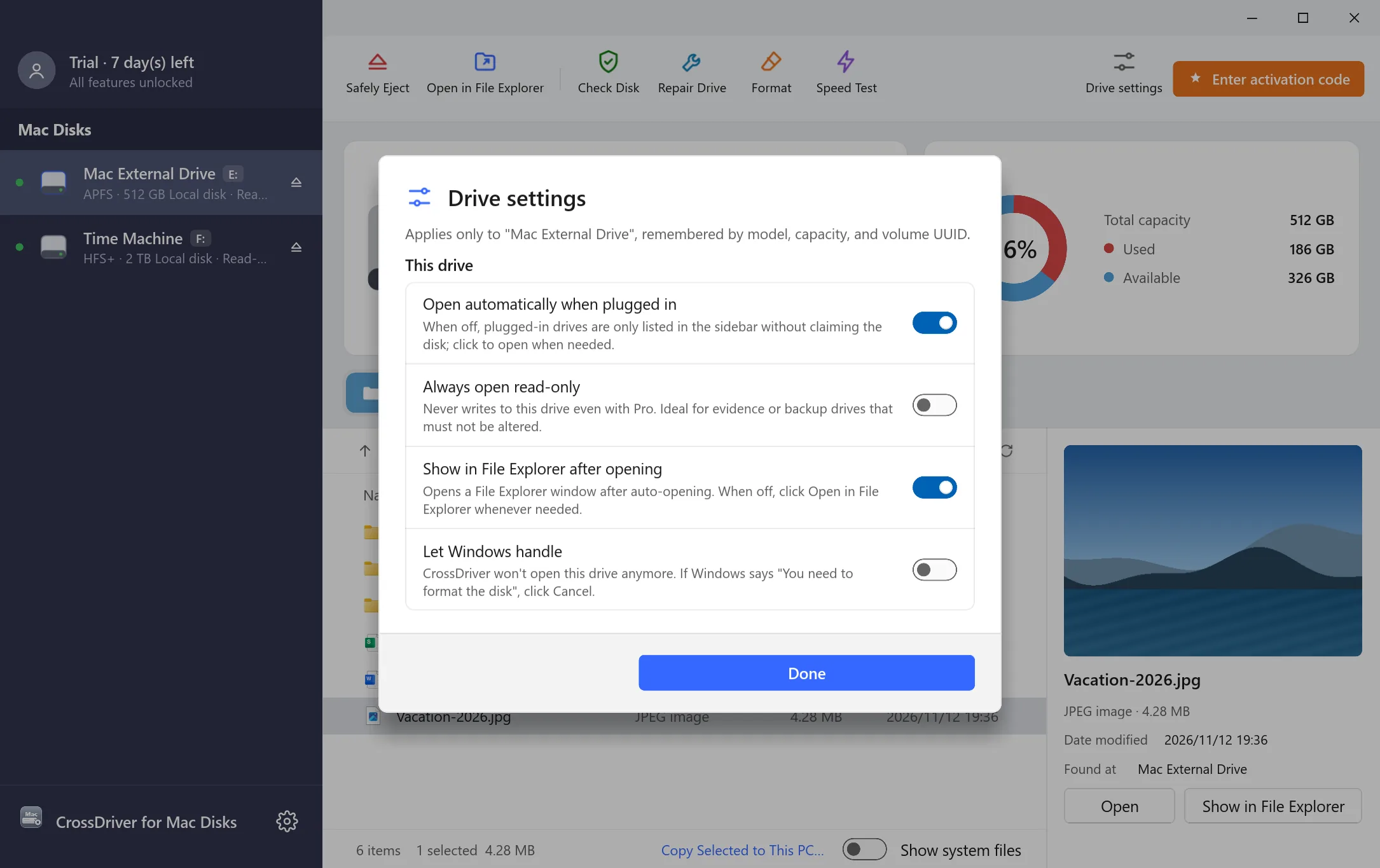
APFS writing is still being tested. Once available, each drive's settings will have "Open read-write (experimental)", off by default; before you turn it on, it explains what's supported: unencrypted APFS can create, modify and delete files, while encrypted volumes and Time Machine backup drives always stay read-only.

  • 1Open automatically when plugged in, or manually when needed
  • 2Always open read-only (evidence drives, backup drives)
  • 3Show in File Explorer after opening
  • 4Or leave it to Windows

Whether writing becomes available, and how far it goes, is set by the release notes of the release version; back up important files before writing. HFS+ is handled the same way, and only non-journaled HFS+ can be written.

CrossDriver for Mac Disks (APFS / HFS+ for Windows (read Mac drive on Windows)) screenshot: Open automatically when plugged in; Always open read-only; Show in File Explorer after opening; Leave it to Windows
1Open automatically when plugged in
2Always open read-only
3Show in File Explorer after opening
4Leave it to Windows
03Encryption

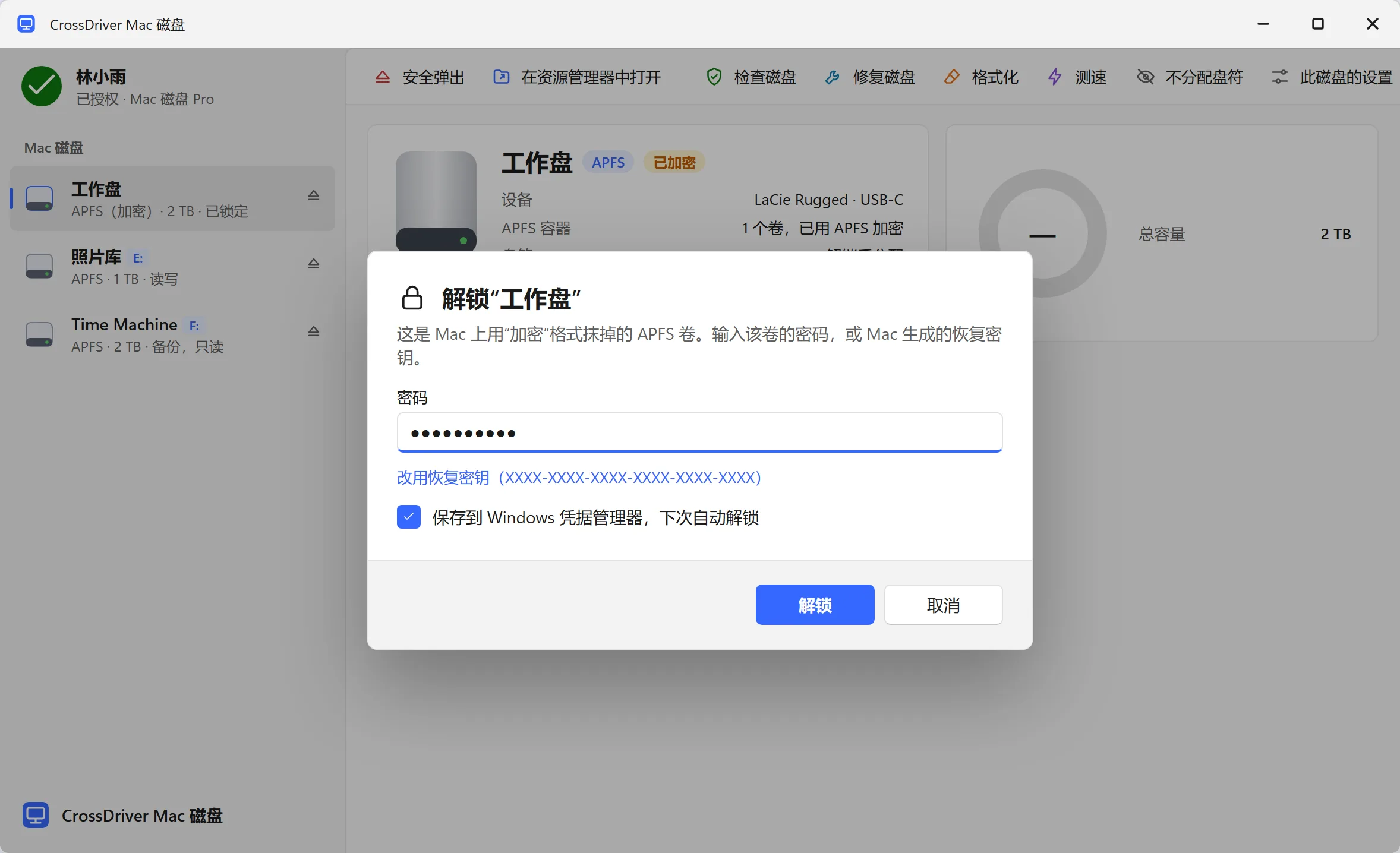
Encrypted APFS drives open with their password

An external drive erased on a Mac in an "Encrypted" format unlocks with the volume password or the recovery key the Mac generated.

  • 1Enter the volume password
  • 2Or use the recovery key
  • 3Saved in Windows Credential Manager to unlock automatically next time
CrossDriver for Mac Disks interface mockup: Enter the volume password; Or use the recovery key; Save in Credential Manager
1Enter the volume password
2Or use the recovery key
3Save in Credential Manager
Mockup
04Time Machine

Time Machine backups, browsed by point in time

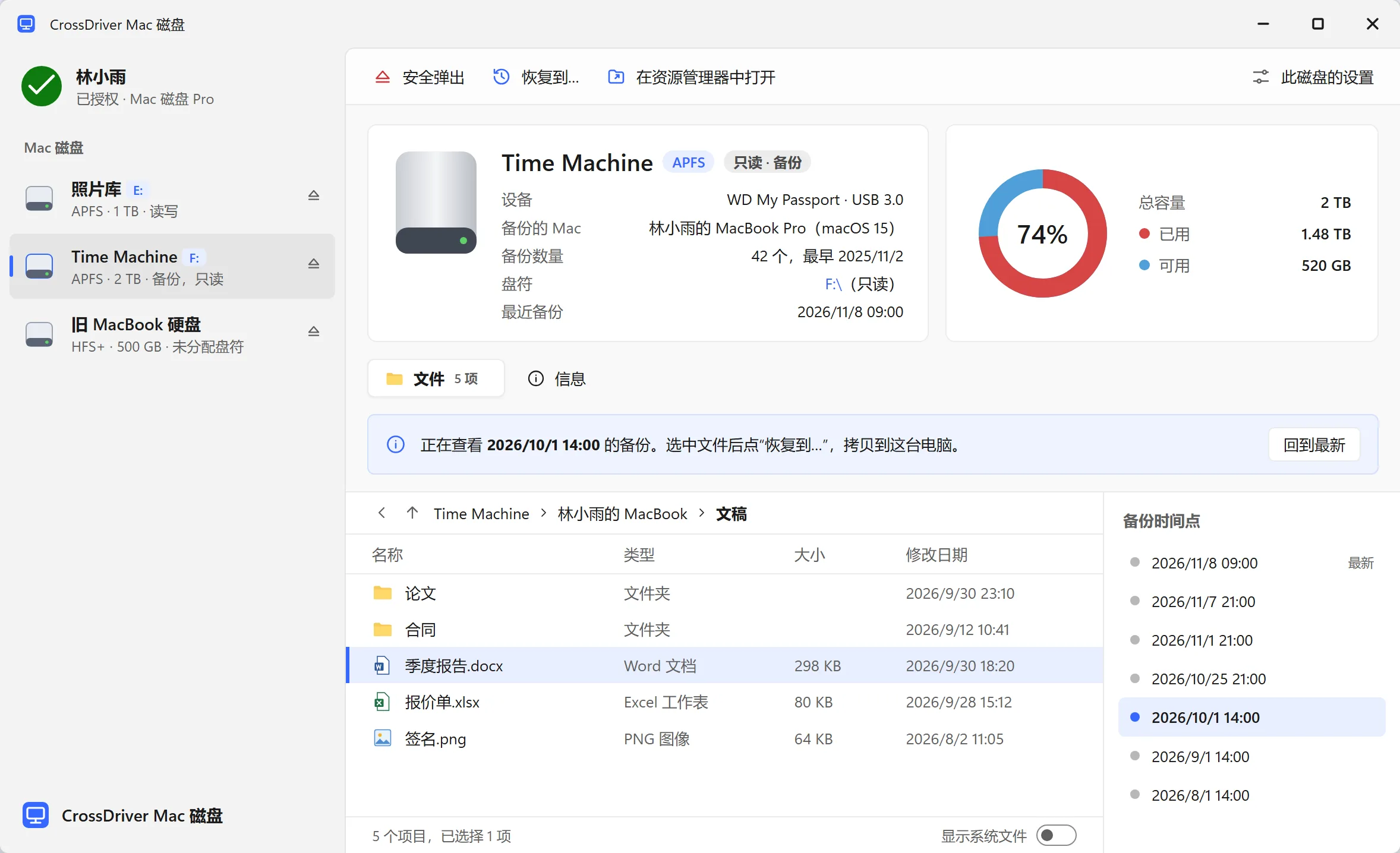
Connect a Mac's Time Machine backup drive to a Windows PC, browse the folders as they were at each backup, and restore the files you need to this PC. The backup drive is always read-only, so the backups are never changed.

  • 1Browse by backup point in time
  • 2Always clear which backup you're viewing
  • 3Select files and "Restore to…" this PC
  • 4Backup drive is read-only
CrossDriver for Mac Disks interface mockup: Browse by backup point in time; Viewing the October 1 backup; Restore to this PC; Backup drive is read-only
1Browse by backup point in time
2Viewing the October 1 backup
3Restore to this PC
4Backup drive is read-only
Mockup
05File Explorer

Get old versions back under "Previous versions" in file properties

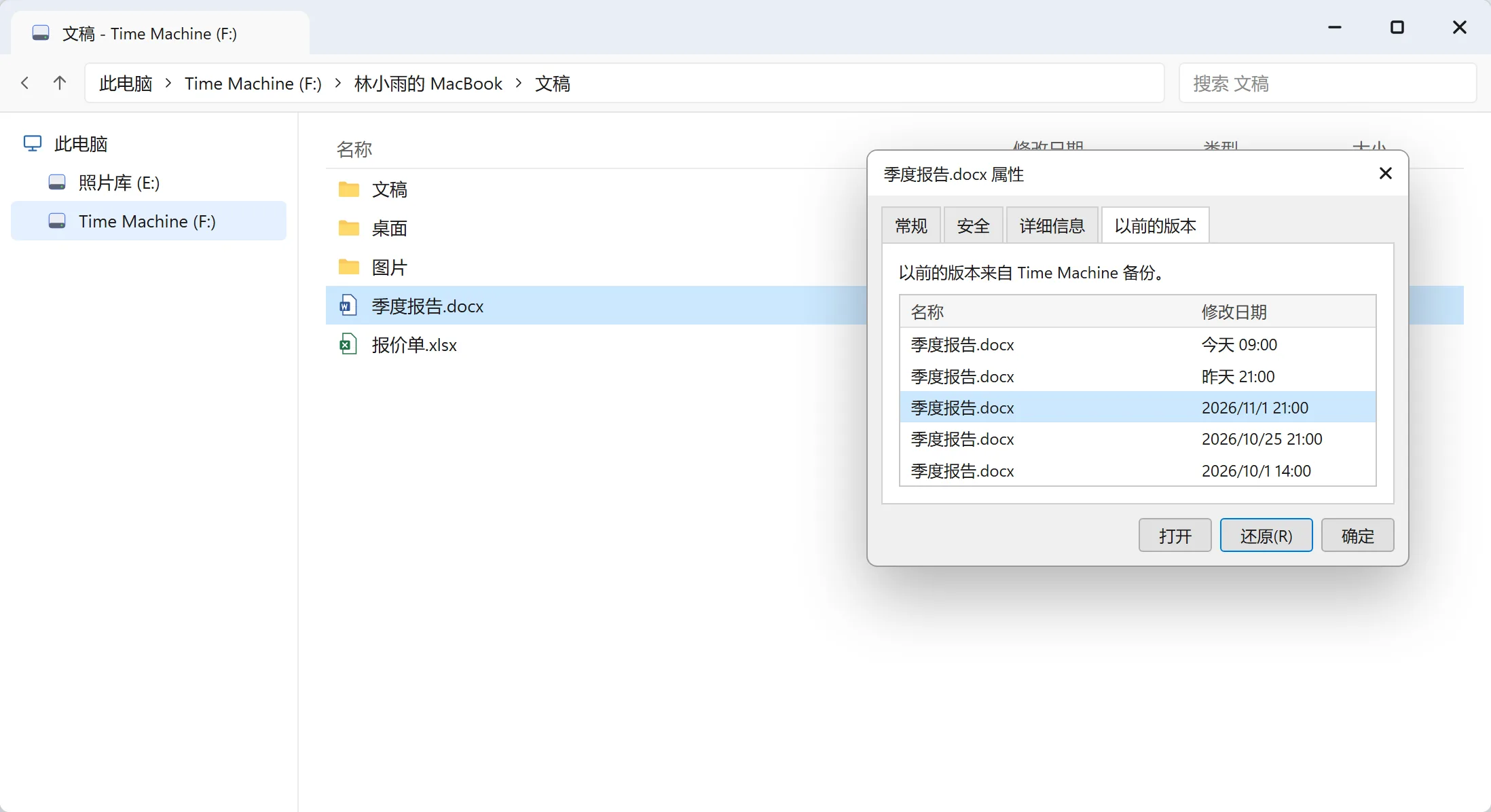
Time Machine backup drives get their own drive letter too. In File Explorer, right-click a file › Properties › Previous versions to see it as it was in each backup, and open or restore it directly.

  • 1Time Machine backup drives have their own drive letter
  • 2"Previous versions" come from Time Machine backups
  • 3Open or restore to this PC
CrossDriver for Mac Disks interface mockup: The backup drive has its own drive letter; "Previous versions"; Open or restore
1The backup drive has its own drive letter
2"Previous versions"
3Open or restore
Mockup
06Pro

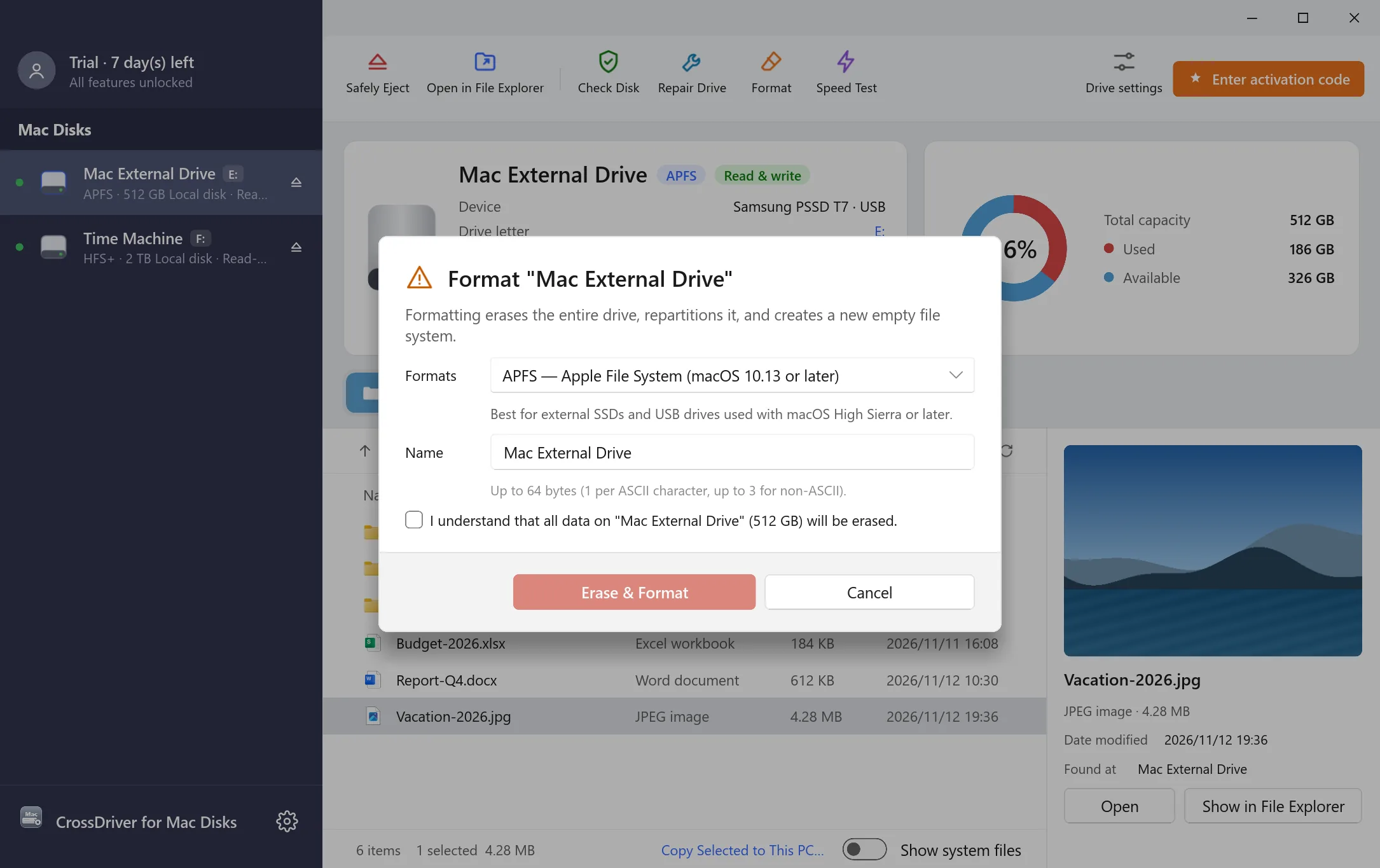
Format as APFS, HFS+ or exFAT

Prepare drives for a Mac on a Windows PC: APFS for newer Macs, HFS+ for older Macs, exFAT that both read and write directly.

  • 1Choose APFS, HFS+ or exFAT, with what each is for alongside
  • 2Check to confirm before erasing
CrossDriver for Mac Disks (APFS / HFS+ for Windows (read Mac drive on Windows)) screenshot: Choose from three formats; Check to confirm before erasing
1Choose from three formats
2Check to confirm before erasing
What's supported

Every Mac disk format covered

Read and write support for each format, in one table.

ReadWriteNotes
APFS (unencrypted)✓ExperimentalWriting is off by default; turn it on in each drive's settings
Encrypted APFSOnce unlockedRead-onlyVolume password or recovery key
Mac OS Extended (HFS+)✓ExperimentalOnly non-journaled HFS+ can be written
Time Machine backup drive✓Read-onlyBrowse by backup point in time, with "Previous versions" in File Explorer
Other partitions on the same drive✓Depends on the formatE.g. the NTFS partition of a Boot Camp disk, shown together in for Mac Disks

A drive belongs to one CrossDriver app at a time: when for Mac Disks opens a drive, the other partitions on it are shown too, so no partition is lost.

Works with

Works with mainstream PCs and drives of every brand

PCs

System
Windows 10 2004 (19041) and later, Windows 11; Home, Pro and Education are all supported
Processor
x64 (Intel, AMD) and ARM64 (e.g. Snapdragon); one installer that picks the right one when installing
Type
Desktops, laptops, mini PCs; running in a virtual machine or cloud desktop needs nested virtualization

Supported disks

Formats
APFS, encrypted APFS, Mac OS Extended (HFS+), Time Machine backups
Type
External hard drives, external SSDs, USB flash drives, SD cards, and old Mac drives in an enclosure
Connection
USB-A, USB-C, Thunderbolt, card readers, drive enclosures, docking stations; USB flash drives and card readers supported as well

Common uses

Mac and Windows together
Files copied on the Mac, opened on a Windows PC
Time Machine
Mac broken or replaced: recover files from the backup drive
Footage drives
Video footage drives formatted on a Mac
Old Mac drives
Drives taken out of a Mac, read in an enclosure

Any brand, any capacity: if the format matches, it opens.

How it works

No kernel driver:
Windows' own Virtual Machine Platform

CrossDriver reads and writes APFS and HFS+ drives with native Linux file system drivers inside an isolated, lightweight Linux virtual machine, then hands the volumes to File Explorer as drive letters. The virtual machine runs on Windows' built-in Virtual Machine Platform; no kernel driver is installed.

✓ No kernel driver

A built-in Windows component

Just turn on Windows' built-in Virtual Machine Platform and restart once the first time. Windows Home has it too.

✓ One engine

One virtual machine, however many apps

All five apps share one background service and one virtual machine: no fighting over drives and resources used only once. When no drive needs serving, the virtual machine stops by itself.

✓ Safe eject

Everything's written before you unplug

Click "Safely eject" in the app or the taskbar tray: the engine first writes every change back to the disk, then tells you it's safe to unplug.

Requirements: Windows 10 2004 (19041) or later, x64 and ARM64, virtualization enabled in the BIOS. When Windows itself runs in a virtual machine, nested virtualization must be turned on.

Pricing

Look for free first, upgrade when you need to write

The free edition opens drives read-only to browse, preview and copy to your PC, with no time limit. Pro can be tried free for 7 days in the app.

Free

US$0

  • Detects and opens Mac drives automatically
  • Read-only access in File Explorer
  • Preview photos, videos & documents
  • Copy files to your PC
  • Browse Time Machine backups by point in time
Free download · Includes 7-day Pro trial
Recommended

for Mac Disks Pro

US$29.95 Lifetime license · 1 year US$19.95 · 1 month US$9.95

  • Everything in Free
  • APFS / HFS+ writing (experimental, once available)
  • Format as APFS, HFS+, exFAT
  • Restore Time Machine files to your PC
Buy Pro

Omni Pro (Complete Bundle)

US$49.95 Lifetime license · 1 year US$29.95 · 1 month US$14.95

  • Everything in for Mac Disks + for Linux Disks
  • Plus ZFS, F2FS
  • One license, three apps
Learn about Omni

Each license is for 1 PC and can be deactivated in the app to move it to another; works offline, no account needed. Lifetime licenses get free updates for life, including future major versions. Prices are in US dollars, purchased on crossdriver.com; Mac and Windows licenses are separate. After-sales and refund policy. Each code can be moved to another computer 3 times on your own; after that, contact support.

FAQ

Q&A

A Mac external drive says it needs formatting on Windows. What should I do?

Click "Cancel" and never format it. Windows doesn't understand APFS or HFS+, so it treats the drive as unformatted, but the files inside are fine. Once for Mac Disks is installed, the drive appears in File Explorer with a drive letter.

Can I write files to a Mac drive?

APFS writing is currently experimental: once available, you write only after turning on "Open read-write (experimental)" in the drive's settings, which is off by default; encrypted volumes and Time Machine backup drives always stay read-only. HFS+ is handled the same way, and only non-journaled HFS+ can be written. For a drive both sides write to often, we recommend formatting it as exFAT.

Can Time Machine backups be opened on Windows?

Yes. for Mac Disks lists every backup on the backup drive, lets you browse the files as they were at each point in time and restore what you need to this PC; "Previous versions" in a file's properties in File Explorer also shows each backup. The backup drive is always read-only.

Can encrypted APFS drives be opened?

Yes. Enter the volume password or the recovery key the Mac generated to unlock it; it can be saved in Windows Credential Manager so the drive unlocks automatically next time you plug it in.

What happens to the NTFS partition of a Boot Camp disk?

A drive belongs to one CrossDriver app at a time: when for Mac Disks opens the drive, its NTFS partition is shown in for Mac Disks too, so nothing is lost.

Why do I have to restart the first time?

CrossDriver runs the engine that reads and writes drives on Windows' built-in Virtual Machine Platform component. It's off by default; the installer or the first-launch page walks you through turning it on, after which one restart is needed — and never again. Steps: Turn on Virtual Machine Platform.

Does it install a kernel driver?

No. CrossDriver installs no file system driver or any other kernel driver: drives are read and written by an isolated, lightweight Linux virtual machine and then appear in File Explorer as drive letters. The background service only starts when a CrossDriver app needs it, and uninstalling the last CrossDriver app removes the service, the tray helper and the virtual machine image together.

Do the drive letters stay after I close the app?

Yes. After you close the app, the drives it opened stay available through the background service and keep their drive letters; before unplugging, click "Safely eject" in the CrossDriver menu of the taskbar tray.

Is "Disconnect" on a network drive in File Explorer the same as ejecting?

No. CrossDriver's drive letters appear as network locations; before unplugging, click "Safely eject" in the app or tray menu: the engine first writes changes back to the disk, then tells you it's safe to unplug.

Can I try Pro first?

Yes. for Mac Disks, for Linux Disks and Omni all let you try Pro free for 7 days in the app. When the trial ends the drives remain readable and your files are unaffected.

I bought the Mac version. Do I need to buy the Windows version too?

Yes. Mac and Windows licenses are separate; a discounted bundle for both is coming soon.

Mac drives, opened on Windows

Download CrossDriver for Mac Disks and open your drive for free.

Windows 10 2004 or later · x64 and ARM64 · Privacy policy · Pricing · Open-Source Licenses

Downloads are counted anonymously; no personal information is recorded.